To extract the audio from a video, open the file in a converter, choose an audio-only format such as MP3, and save the result. The quickest free way is a browser tool: ChatCut’s video to MP3 converter reads the video on your own device, so nothing is uploaded, and gives you an MP3 or WAV in a few seconds. On a Mac, QuickTime Player can do it with no extra software; on Windows, VLC is the usual free choice; and FFmpeg does it in one command on any system.
We ran every method below on the same file: a 20-second, 3.8 MB creator take recorded as an MP4. The numbers in this guide come from that file, checked on November 18, 2026.
Key takeaways
- Fastest, any computer: a browser converter. Our test file became a 468 KB MP3 in seconds.
- Mac, nothing to install: QuickTime Player → File → Export As → Audio Only. You get an M4A, not an MP3.
- Windows: VLC → Media → Convert / Save, profile Audio – MP3.
- Best quality: copy the original audio track instead of re-encoding it. Most MP4s carry AAC audio, so saving it as M4A keeps it untouched.
- Higher bitrate doesn’t add quality. Our clip’s soundtrack was 128 kbps AAC. A 320 kbps MP3 of it is bigger, not better.
MP3, M4A or WAV: which should you pick?
Pick the format your next app accepts, then the smallest one that keeps the quality you need. Here is what each choice produced from our 20-second clip, whose original soundtrack is AAC at 128 kbps, 48 kHz stereo:
| Output | How it’s made | Size | Use it when |
|---|---|---|---|
| MP3, 192 kbps | Re-encoded | 468 KB | You need a file that plays everywhere: podcast hosts, email, old players |
| M4A (AAC) | Original track copied, no re-encoding | 315 KB | You want the exact original sound in the smallest file |
| WAV | Decoded to uncompressed PCM | 3.6 MB | You’ll edit or mix the audio in a DAW and want no further compression |
Two things surprised us. The WAV was about as large as the whole video, because uncompressed audio takes 1.5 Mbps at 48 kHz stereo. And the M4A was the smallest file and the highest quality, because nothing was re-encoded. Converting to WAV or a high-bitrate MP3 can’t restore detail the original AAC track never had.
Method 1: Extract audio in your browser (any computer)
This is the route to use when you don’t want to install anything and don’t want to upload a private recording. ChatCut’s free MP4 to MP3 converter runs inside the browser tab with WebCodecs: the video is read and the audio is written on your device.
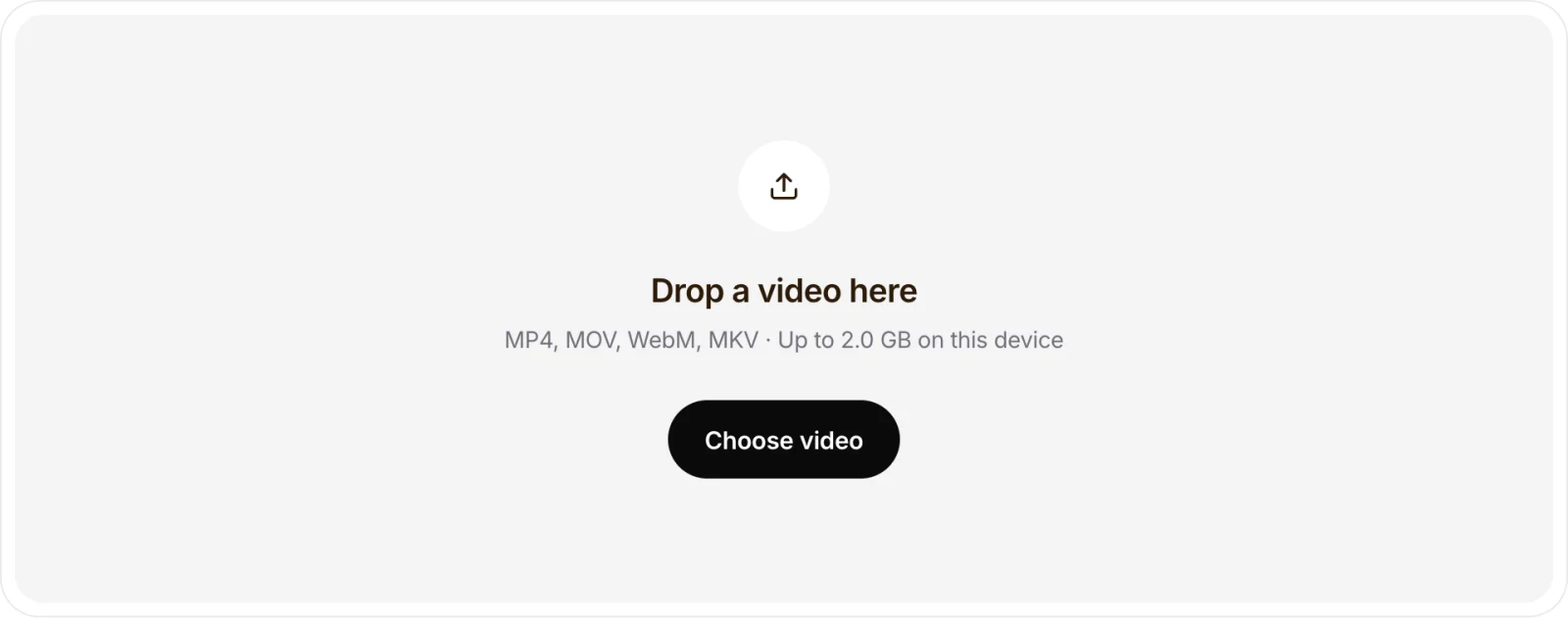
- Choose the video. Open the video to MP3 tool and drop in an MP4, MOV, WebM or MKV. It accepts files up to 2 GB on a computer and 500 MB on a phone.
- Pick MP3 or WAV. For MP3, choose 128, 192 or 320 kbps. 192 kbps is a sensible default for speech and most music; go to 320 kbps only if the original soundtrack is high quality to begin with.
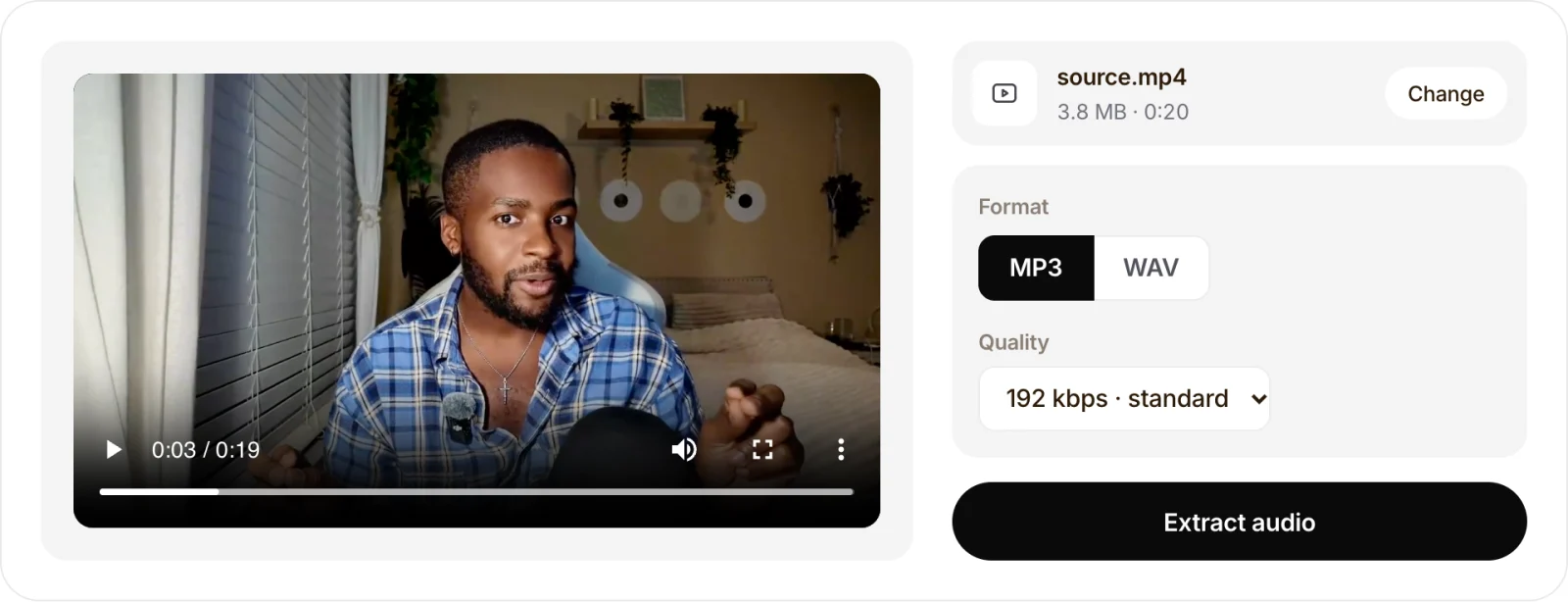
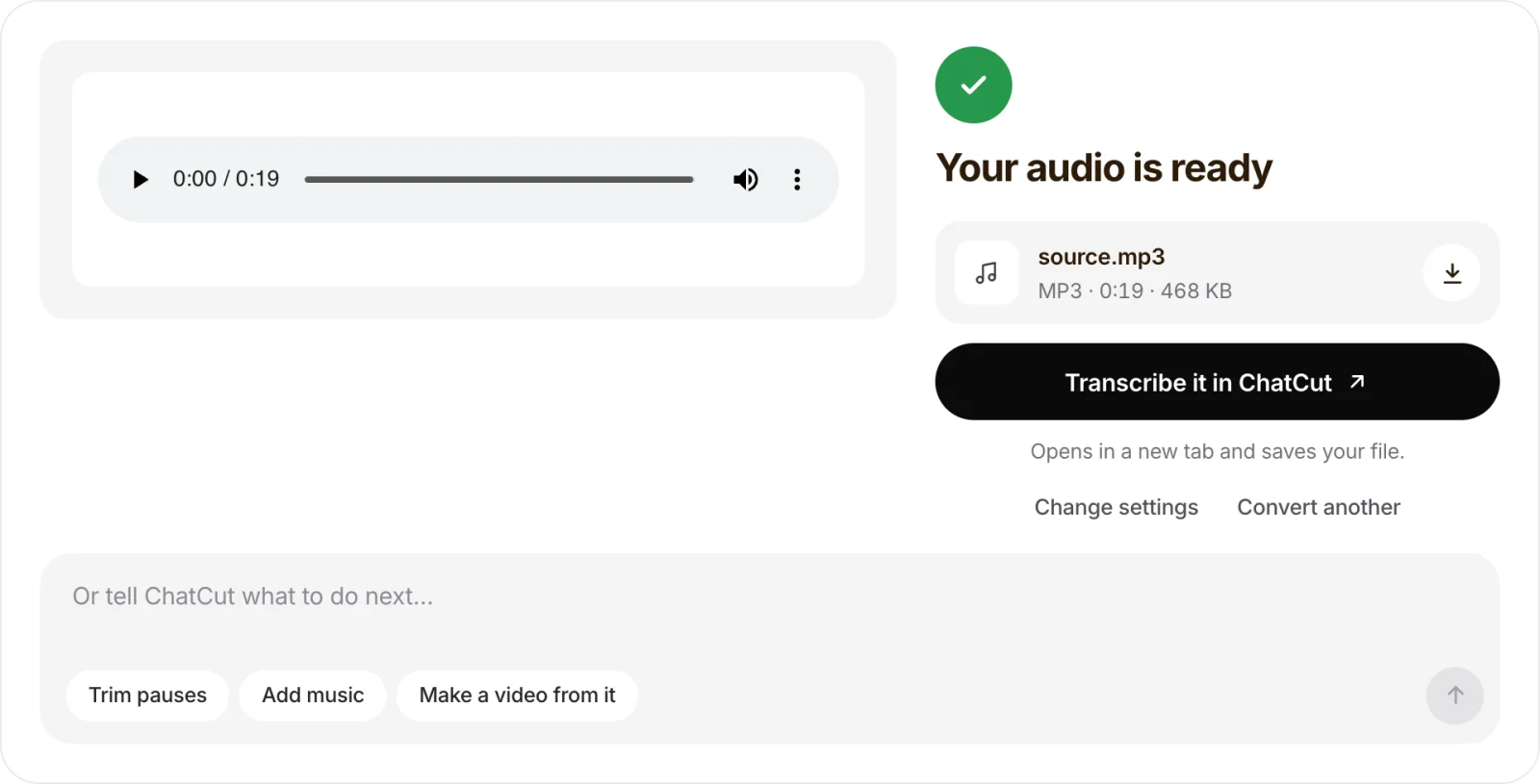
- Extract and listen. Press Extract audio, play the result to check that it’s the sound you expected, and download it.
If the source is a MOV from an iPhone or a screen recorder, the MOV to MP3 converter does the same thing; for an uncompressed copy for editing, use MP4 to WAV.
Method 2: QuickTime Player on a Mac (built in)
QuickTime can save just the soundtrack of any video it can play, with no extra software.
- Open the video in QuickTime Player (right-click the file → Open With → QuickTime Player if another app opens it).
- Choose File → Export As → Audio Only.
- Name the file and save it.
The result is an M4A (AAC) file, not an MP3. That’s fine for most uses, and it plays on every Apple device and in most apps. If you specifically need an MP3, run the M4A or the original video through Method 1 or Method 4. If Audio Only is missing, make sure the file is open in QuickTime itself rather than in Finder’s Quick Look preview, as AppleInsider’s walkthrough also notes.
Method 3: VLC on Windows (or Mac and Linux)
VLC is free and open source, and its converter can write an MP3 directly.
- Open VLC and choose Media → Convert / Save (on a Mac: File → Convert / Stream).
- Click Add, pick your video, then click Convert / Save.
- In Profile, choose Audio – MP3.
- Click Browse, pick a folder and type a file name ending in .mp3.
- Click Start. VLC converts in the background; the progress bar is the playback slider.
If VLC saves a file with no sound or the wrong extension, check that the destination name ends in .mp3 and that the profile is still Audio – MP3. University IT guides such as Michigan’s describe the same steps.
Method 4: FFmpeg (one command, any system)
FFmpeg is the command-line engine behind many converters. These are the exact commands we ran on our test file:
# MP3 at 192 kbps (re-encoded): 468 KB from our 20-second clip
ffmpeg -i input.mp4 -vn -c:a libmp3lame -b:a 192k output.mp3

# Copy the original AAC track with no re-encoding: 315 KB, identical sound
ffmpeg -i input.mp4 -vn -c:a copy output.m4a

# Uncompressed WAV for editing: 3.6 MB
ffmpeg -i input.mp4 -vn output.wav
-vn drops the video stream. -c:a copy only works when the target container supports the source codec: AAC goes into .m4a, but it can’t be copied into an .mp3. To see what’s inside a file before choosing, run ffprobe input.mp4 and look at the Audio: line.
Method 5: iPhone or iPad with Shortcuts
There’s no “save audio” button in the Photos app, but Apple’s free Shortcuts app can build one:
- In Shortcuts, create a new shortcut and add Select Photos (or let it receive videos from the Share Sheet).
- Add Encode Media, expand it and turn on Audio Only. Set the format to M4A.
- Add Save File and choose a folder in Files.
- Run the shortcut, pick a video, and the M4A lands in Files.
Labels can differ slightly between iOS versions, and users on AppleVis report failures when no output format or save folder is set. On a phone, the browser method also works: open the video to MP3 tool in Safari or Chrome for videos up to 500 MB.
Check the file before you send it
These are the problems we’ve seen in real files, and how to fix them:
- “No audio track found.” Some screen recordings and exported clips have no soundtrack at all. Play the video with sound on first; if it’s silent there, there’s nothing to extract.
- The browser can’t read the audio. A browser tool depends on the codecs your browser supports. If one browser refuses a file, try Chrome or Edge, or use QuickTime, VLC or FFmpeg, which read almost anything.
- The MP3 sounds worse than the video. You re-encoded at a low bitrate. Use 192 kbps or higher, or copy the original track as M4A.
- The file is much bigger than expected. You probably chose WAV. That’s right for editing and wrong for sharing; use MP3 or M4A to send it.
- Only part of the audio is needed. Extract first, then cut it with the audio trimmer, or trim the video first with the video trimmer.
What to do with the audio next
Most people extract audio as a step toward something else. A few common next steps:
- Get a transcript or notes. Upload the MP3 to ChatCut’s audio to text app, or transcribe the original video directly with video to text.
- Clean up a voice track. Cut pauses and filler words in the audio editor.
- Reuse it in a new video. Put the audio under different footage, or add music to a video in ChatCut.