To make a GIF from a video, pick a short moment (two to five seconds is plenty), choose a width and frame rate, and convert that range to GIF. The quickest free way is a browser tool: ChatCut’s video to GIF converter reads the video on your own device, so nothing is uploaded, and gives you a looping GIF in about a second. On an iPhone, the Shortcuts app can do it; ezgif works in any browser if you don’t mind uploading; and FFmpeg gives you the most control.
We ran every method below on the same clip: the first 2.1 seconds of an 8-second, 798 KB product ad (540 × 720), where a drop falls from a dropper and opens into a blue flower. The numbers in this guide come from that clip, checked on November 18, 2026.
Key takeaways
- Keep it short. Our 2.1-second GIF was 1.6 MB, twice the size of the whole 8-second MP4 it came from. GIF compresses moving footage far less efficiently than video.
- Width and frame rate decide the size. The same 2.1 seconds came out at 582 KB (320 px, 10 fps) or 1.6 MB (480 px, 15 fps).
- Tall videos hit a height cap. Our portrait clip came out 480 × 640 at both the 480 px and 640 px settings, because height is capped at 640 px.
- GIFs have no sound. If the moment only makes sense with audio, share a short MP4 instead.
- Too big after converting? Run the GIF through a compressor. Our 1.6 MB GIF dropped to 292 KB at 320 px, 10 fps and 64 colors.
Which settings should you pick?
Start with the destination, then use the smallest setting that keeps the action readable. Here is what ChatCut’s tool produced from our 2.1-second range:
| Width setting | Frame rate | Output | Frames | Size |
|---|---|---|---|---|
| 320 px | 10 fps | 320 × 427 | 21 | 582 KB |
| 480 px | 10 fps | 480 × 640 | 21 | 1.0 MB |
| 480 px | 15 fps | 480 × 640 | 32 | 1.6 MB |
| 640 px | 15 fps | 480 × 640 | 32 | 1.6 MB |
Going from 10 to 15 fps added about 50% to the file, and going from 320 to 480 px wide nearly doubled it. For chat apps and help articles, 320 or 480 px at 10 fps is usually enough. Use 15 fps when the motion is fast and you can see it stutter at 10.
Method 1: Make a GIF in your browser (any computer)
Use this when you don’t want to install anything or upload a private clip. ChatCut’s free video to GIF tool decodes the video and writes the GIF inside the browser tab, with no account and no watermark.
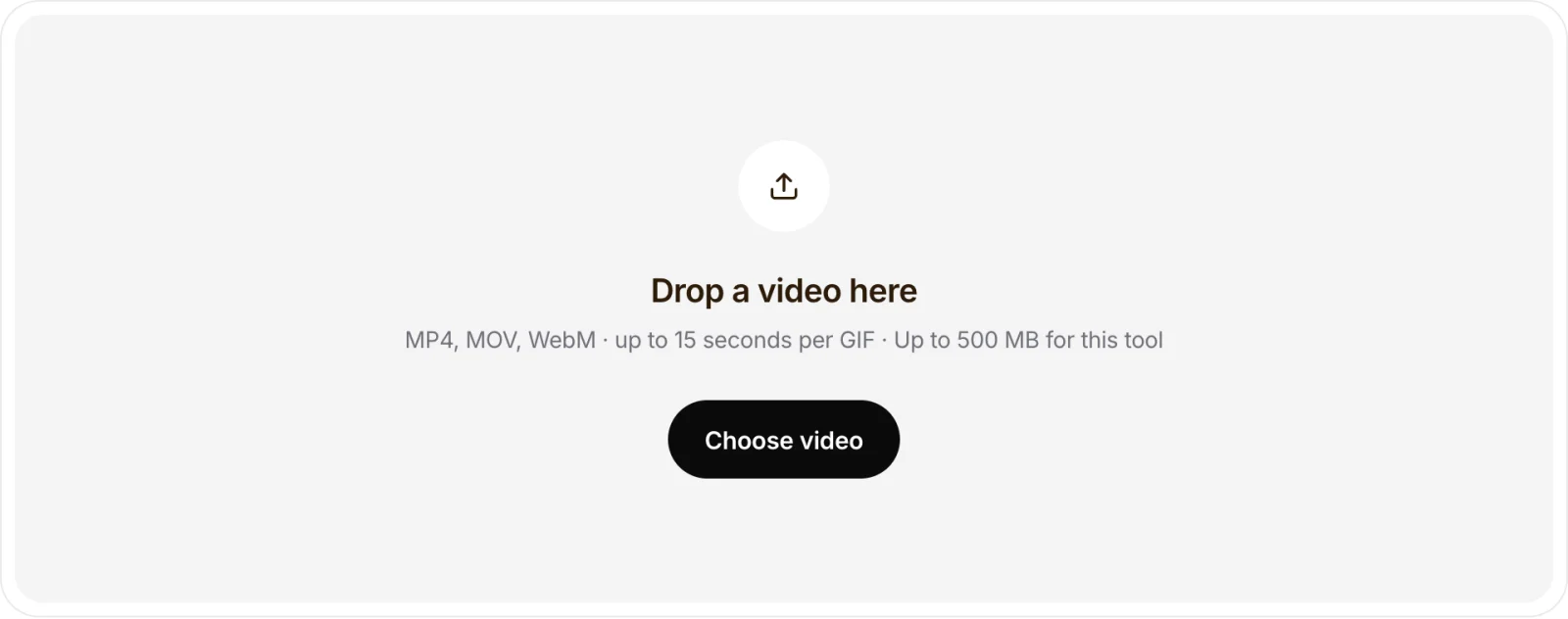
- Choose the video. Open the video to GIF converter and drop in an MP4, MOV or WebM up to 500 MB. Chrome or Edge are the safest choices, since the tool needs the browser’s video decoder.
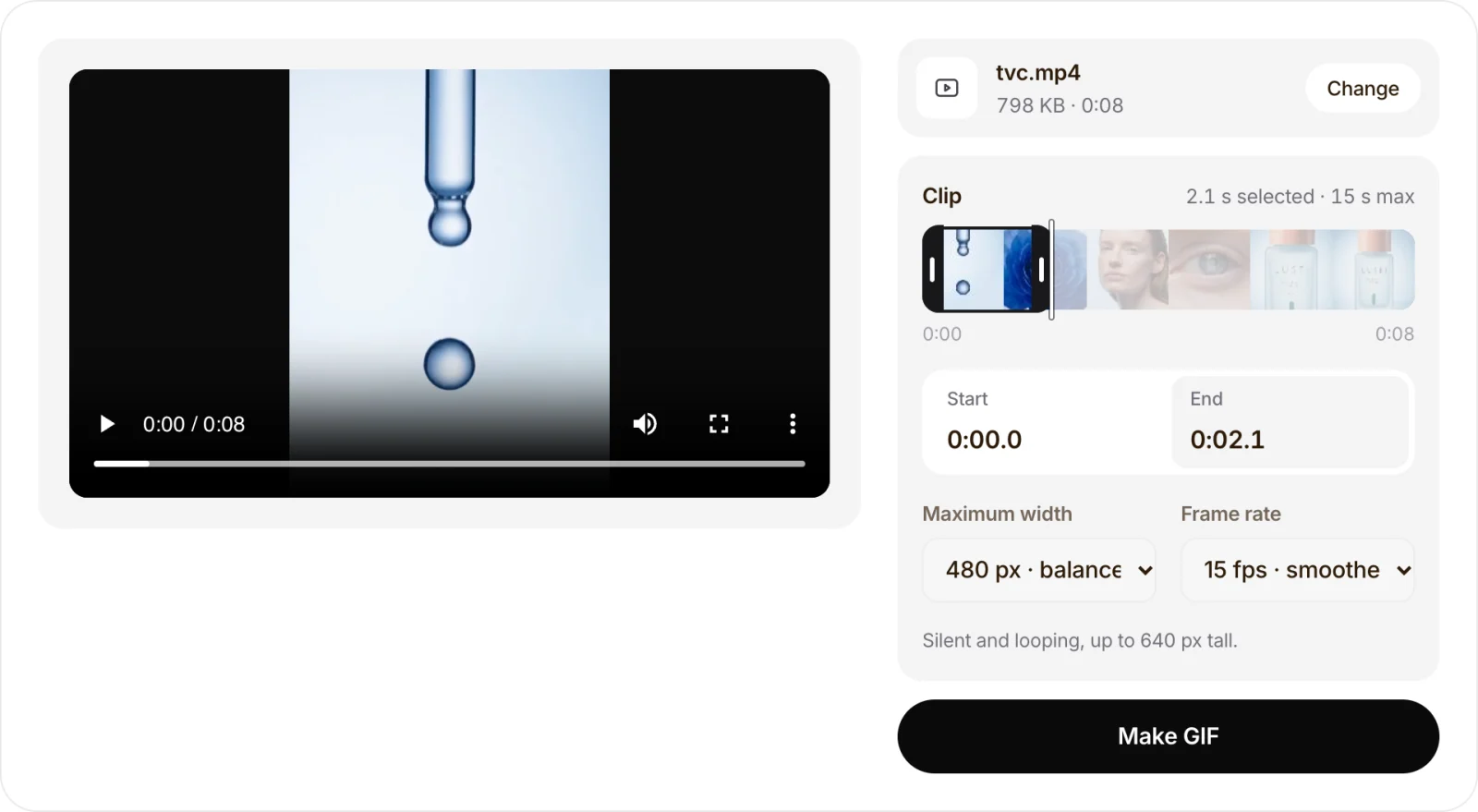
- Set the range, width and frame rate. Drag the handles on the filmstrip or type a start and end time. The range can be up to 15 seconds. Then pick a maximum width of 320, 480 or 640 px and 10 or 15 fps. We chose 0:00.0 to 0:02.1, 480 px and 15 fps.
- Make the GIF, watch it loop, and download it. Press Make GIF. Ours finished in under a second. Watch the preview once or twice to check the loop point, then download.
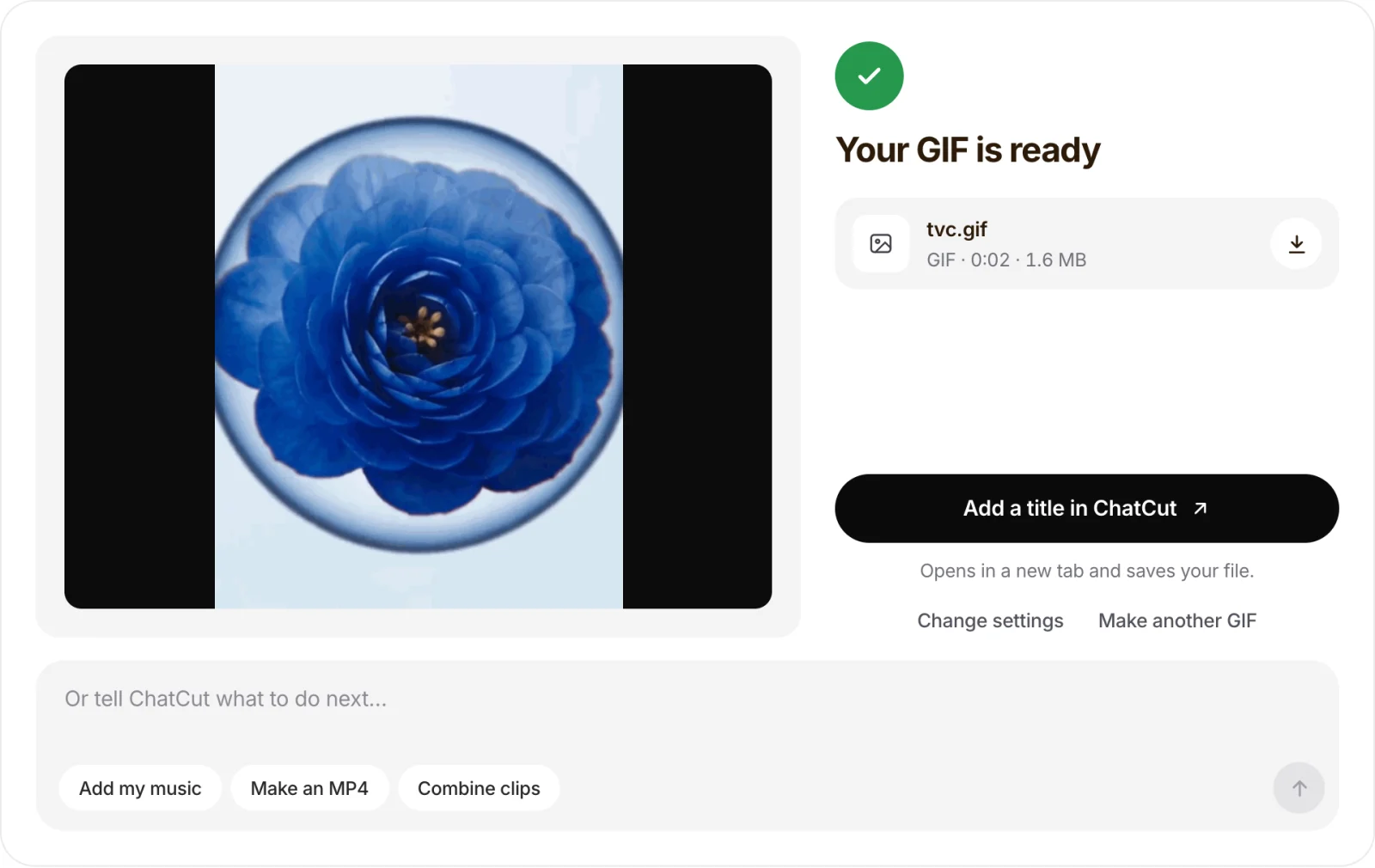
If you leave the end time blank, the tool takes the next five seconds from the start point. The output is always silent and repeats forever.
Method 2: iPhone or iPad with Shortcuts
Apple’s free Shortcuts app has a ready-made Video to GIF shortcut in its Gallery, built on the Make GIF action:
- Open Shortcuts, go to Gallery and search for GIF.
- Add Video to GIF to your shortcuts and run it.
- Pick a video. If it’s long, a trim window opens so you can keep just the moment you want.
- Tap Save, then share the GIF or save it to Photos.
Macworld’s walkthrough describes the same steps. Gallery names and layouts change between iOS versions, so search for “GIF” if you don’t see it. On a phone you can also open the video to GIF tool in Safari or Chrome instead.
Method 3: ezgif (online, with upload)
ezgif’s video to GIF converter is free and accepts almost any video format, including AVI, MKV and WMV, up to 200 MB. You upload the file, set start and end times, size and frame rate, then convert. Two limits to know: the maximum length depends on frame rate (60 seconds at 5 fps, 30 seconds at 10 fps), and your file goes to ezgif’s servers, where the site says uploads are deleted after an hour. For a private recording, use a method that runs on your own device.
Method 4: FFmpeg (best control, any system)
FFmpeg is free and runs on Mac, Windows and Linux. The one thing that matters for GIF quality is the palette: a GIF frame can only hold 256 colors, so let FFmpeg build a palette from your clip first. These are the exact commands we ran on our test clip with FFmpeg 8.1:
# Good quality: build a palette from the clip, then use it. 480 × 640, 15 fps: 2.4 MB
ffmpeg -ss 0 -t 2.1 -i input.mp4 -filter_complex "fps=15,scale=480:-1:flags=lanczos,split[a][b];[a]palettegen[p];[b][p]paletteuse" output.gif

# Smaller: 320 px, 10 fps, 64 colors, ordered dithering: 610 KB
ffmpeg -ss 0 -t 2.1 -i input.mp4 -filter_complex "fps=10,scale=320:-1:flags=lanczos,split[a][b];[a]palettegen=max_colors=64[p];[b][p]paletteuse=dither=bayer" small.gif

# Avoid: no palette. 1.3 MB, with shifted colors and a dot pattern
ffmpeg -ss 0 -t 2.1 -i input.mp4 -vf "fps=15,scale=480:-1" plain.gif
-ss and -t set the start and length in seconds, fps sets the frame rate, and scale=480:-1 sets the width and keeps the aspect ratio. The palettegen and paletteuse filters are documented in FFmpeg’s filter guide.
Here is the same frame from three versions of our GIF, at actual pixels:
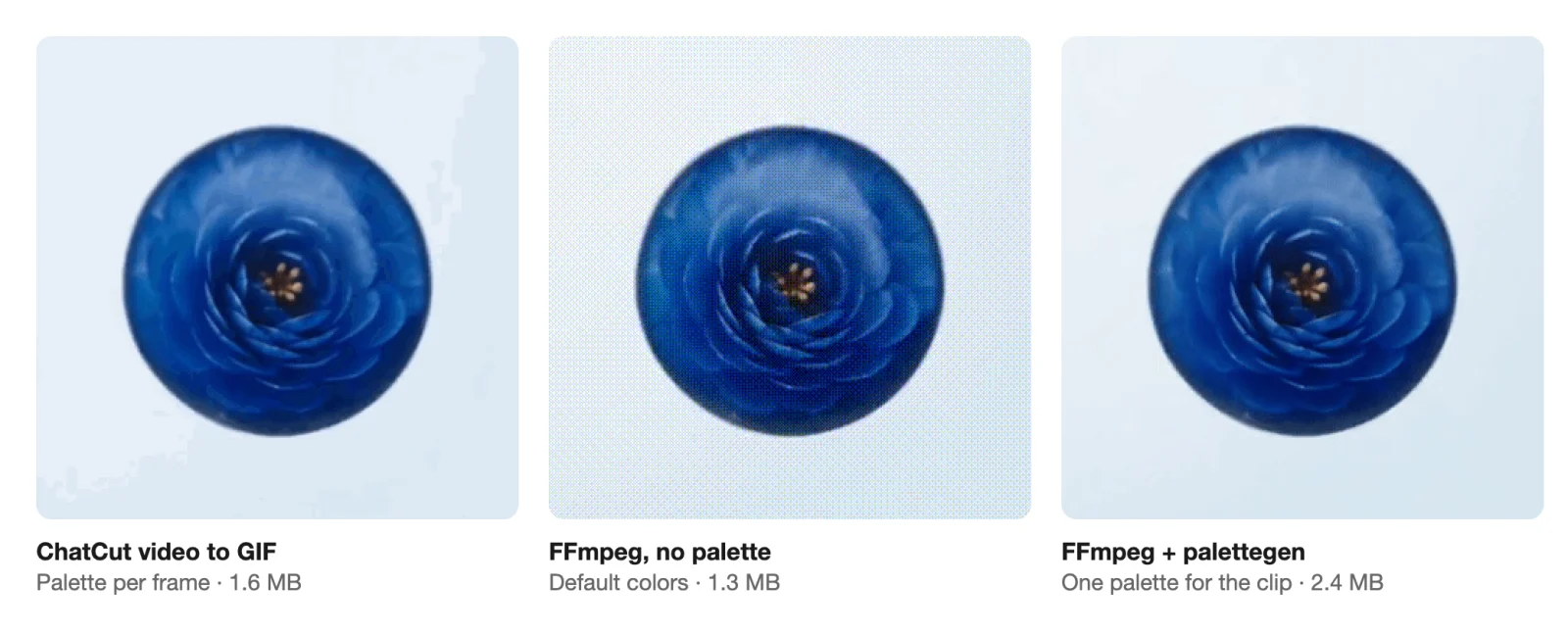
The palette-based FFmpeg GIF had the smoothest gradients but was the largest file. ChatCut’s tool builds a fresh 256-color palette for every frame, which kept the flower clean at 1.6 MB, with some visible banding in the flat background. The no-palette command was the only one with obvious problems.
How to compress a GIF that’s too big
If a GIF is too heavy for a chat app, email or web page, reduce what it contains: fewer pixels, fewer frames, fewer colors. ChatCut’s free GIF compressor does all three in the browser. It accepts GIFs up to 100 MB, 15 seconds and 600 frames in a recent Chrome or Edge.
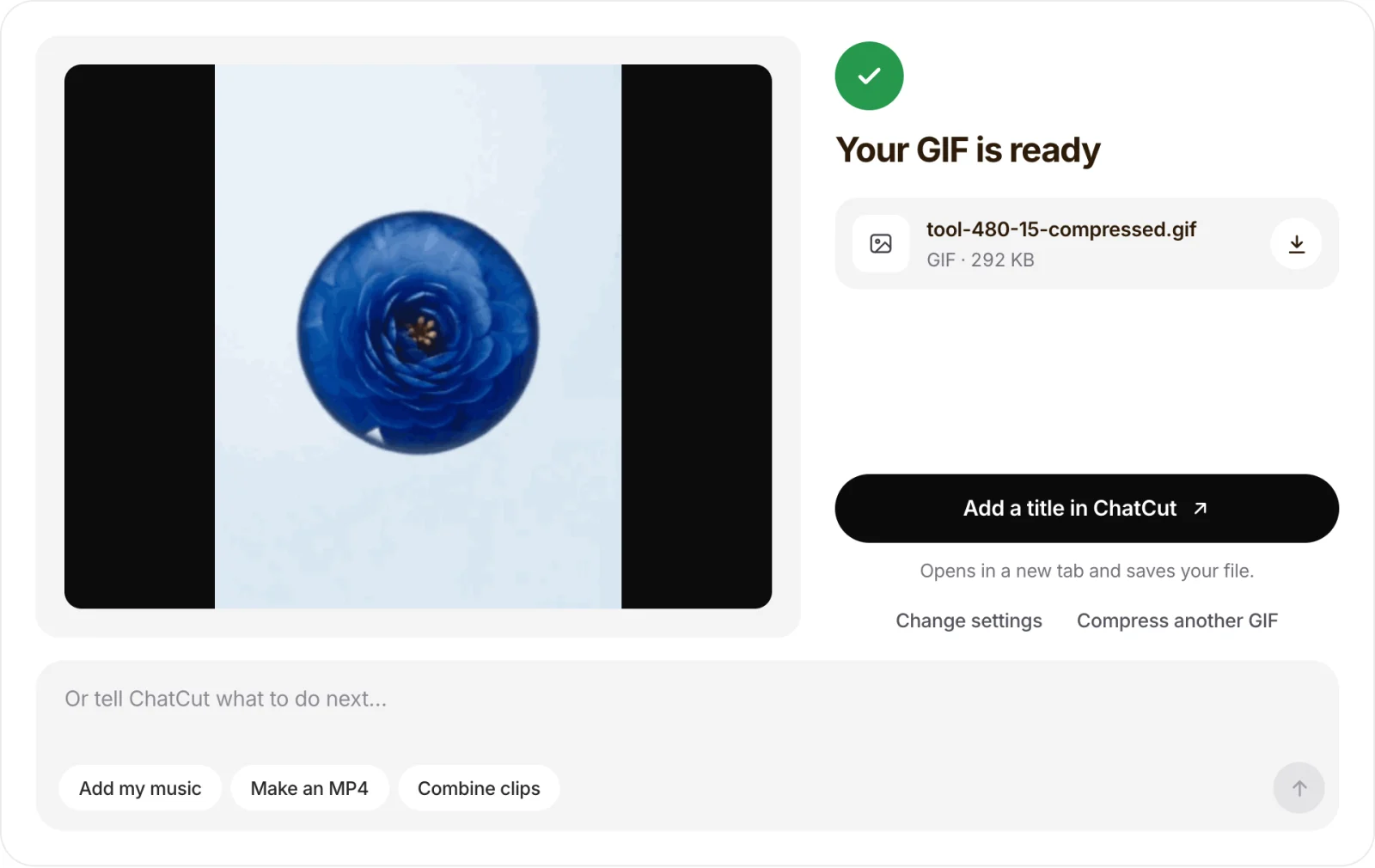
We fed it the 1.6 MB GIF from Method 1:
| Compressor settings | Size | Change |
|---|---|---|
| 480 px, 15 fps, 256 colors | 1.1 MB | −31% |
| 480 px, 15 fps, 128 colors | 971 KB | −41% |
| 480 px, 10 fps, 128 colors | 692 KB | −58% |
| 320 px, 10 fps, 64 colors | 292 KB | −82% |
| 320 px, 10 fps, 32 colors | 209 KB | −87% |
Even with the width and frame rate unchanged, the first row came out smaller: the compressor kept 22 of the 32 frames and showed each one a little longer, so the loop still lasts 2.1 seconds. Check the preview for smoothness after any frame-rate change. The output page shows only the new size, so compare it with your original yourself.
Two other free options:
- ezgif’s GIF optimizer offers lossy compression, color reduction and dropping every second, third or fourth frame, for files up to 200 MB (uploaded).
- Gifsicle on the command line.
gifsicle -O3 --lossy=80 --colors 128 input.gif -o output.giftook our 1.6 MB GIF to 1.0 MB with all 32 frames kept, at the cost of some grain.
The compressor doesn’t target an exact size. If you need to stay under a limit, lower the width first, then the colors, and check after each step.
Check before you share it
These are the problems we ran into, and how to fix them:
- The GIF is bigger than the video. That’s normal. Ours was 1.6 MB from a 798 KB MP4. Shorten the range, use 320 px, or use 10 fps.
- The width didn’t change. A tall video hits the 640 px height cap before the width setting matters. Our 540 × 720 clip came out 480 × 640 at both 480 and 640 px.
- The loop jumps. The last frame cuts straight back to the first. Pick a range that starts and ends on similar frames, or end on a still moment.
- Banding in skies, skin or gradients. GIF frames are limited to 256 colors. Avoid cutting colors below 128 for photographic footage, or share an MP4.
- Transparent parts turned white. The GIF compressor flattens transparency onto white. Keep your original if it’s a sticker meant for a dark background.
- The video won’t open. Browser tools depend on the codecs your browser supports. Re-save the clip as an H.264 MP4, or use FFmpeg.
What to do with the GIF next
- Find the moment first. Cut a long recording down with the video trimmer, then make the GIF from the short clip. For a boomerang, reverse the clip and join it to the original first.
- Need sound or a sharper picture? Send a short MP4 instead and shrink it with the video compressor.
- Put it in a video. ChatCut can import GIFs, so you can add a title, music or other clips around one and export the edit as an MP4. ChatCut’s editor doesn’t export GIF files.
- No footage to start from? See how to make GIFs with ChatGPT Images 2.6 for AI-generated loops.