To make a video smaller, re-encode it at a lower bitrate, a lower resolution, or both. The quickest free way is a browser tool: ChatCut’s video compressor lets you type the size you need in MB, works on your own device, so nothing is uploaded, and gives you an MP4 in seconds. On a Mac, QuickTime Player can export a smaller copy; on Windows, HandBrake is the usual free choice; and FFmpeg does it in one command on any system.
We ran every method below on the same file: an 89-second, 1280×720 talking-head take that started at 59 MB, too big for a Gmail attachment or a free Discord upload. The numbers in this guide come from that file, checked on November 18, 2026.
Key takeaways
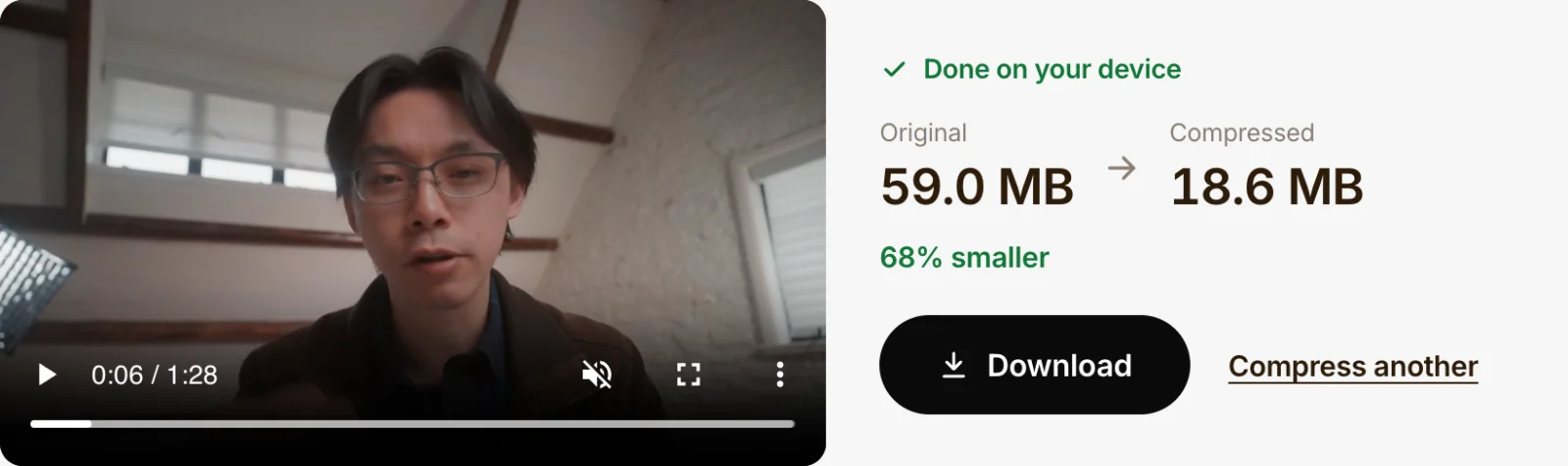
- To hit a limit, compress to a target size. We asked for 19 MB and got 18.6 MB from a 59 MB file in about 3 seconds.
- Email: Gmail’s limit is 25 MB for all attachments together. Aim for about 15 MB so there’s room to spare.
- Discord: free accounts can send files up to 20 MB, and Discord checks the size before any compression on its side. Use a 19 MB target.
- Lower resolution saves the most on long videos. Dropping our clip to 480p made it 9.7 MB, 83% smaller.
- Renaming or changing the container doesn’t shrink a file. Only re-encoding with less data does. Keep the original until you’ve checked the smaller copy.
How small can you go? Our measured results
Pick the setting that matches where the file is going, then check it plays well. Here is what each choice produced from our 59 MB, 89-second source in ChatCut’s compressor:
| Setting | Result | Smaller by | Use it when |
|---|---|---|---|
| Better quality | 30.9 MB | 48% | You want to save space and keep fine detail, and size limits don’t apply |
| Balanced (the default) | 20.8 MB | 65% | A general sharing copy for Slack, a CMS or a review link |
| Target size: 19 MB | 18.6 MB | 68% | Discord on a free account |
| Target size: 15 MB | 14.7 MB | 75% | An email attachment |
| Smaller file | 11.7 MB | 80% | You need the smallest file at the original resolution |
| Balanced + 480p | 9.7 MB | 83% | A long video, or a phone-sized preview |
Each job took 3 to 5 seconds in Chrome on an Apple silicon Mac. All outputs were H.264 MP4 with AAC sound, the same length as the source.
A note on units: the tool counts a megabyte as 1,048,576 bytes, as Windows does. macOS Finder counts 1,000,000, so it showed the same source as 61.9 MB. That gap matters only when you’re right at a limit, which is one more reason to leave a little headroom.
One caveat about our source: the clip on our site is already web-compressed, so we re-encoded it at near-lossless quality to stand in for a camera original. A real phone recording has more fine noise and usually needs a bit more data to look as clean.
Method 1: Compress in your browser (any computer or phone)
This is the route to use when you don’t want to install anything or upload a private recording. ChatCut’s free video compressor decodes and re-encodes the file inside the browser tab with WebCodecs, so the video stays on your device.
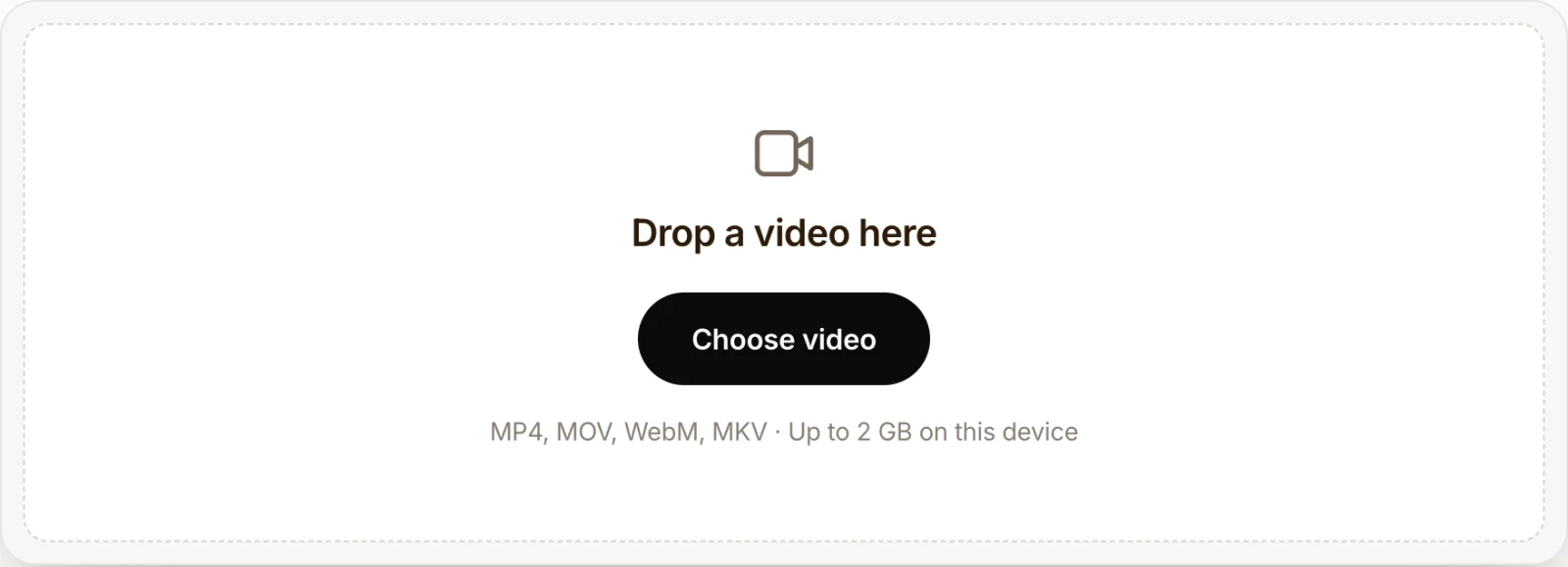
- Choose the video. Open the video compressor and drop in an MP4, MOV, WebM or MKV. It accepts files up to 2 GB on a computer and 500 MB on a phone.
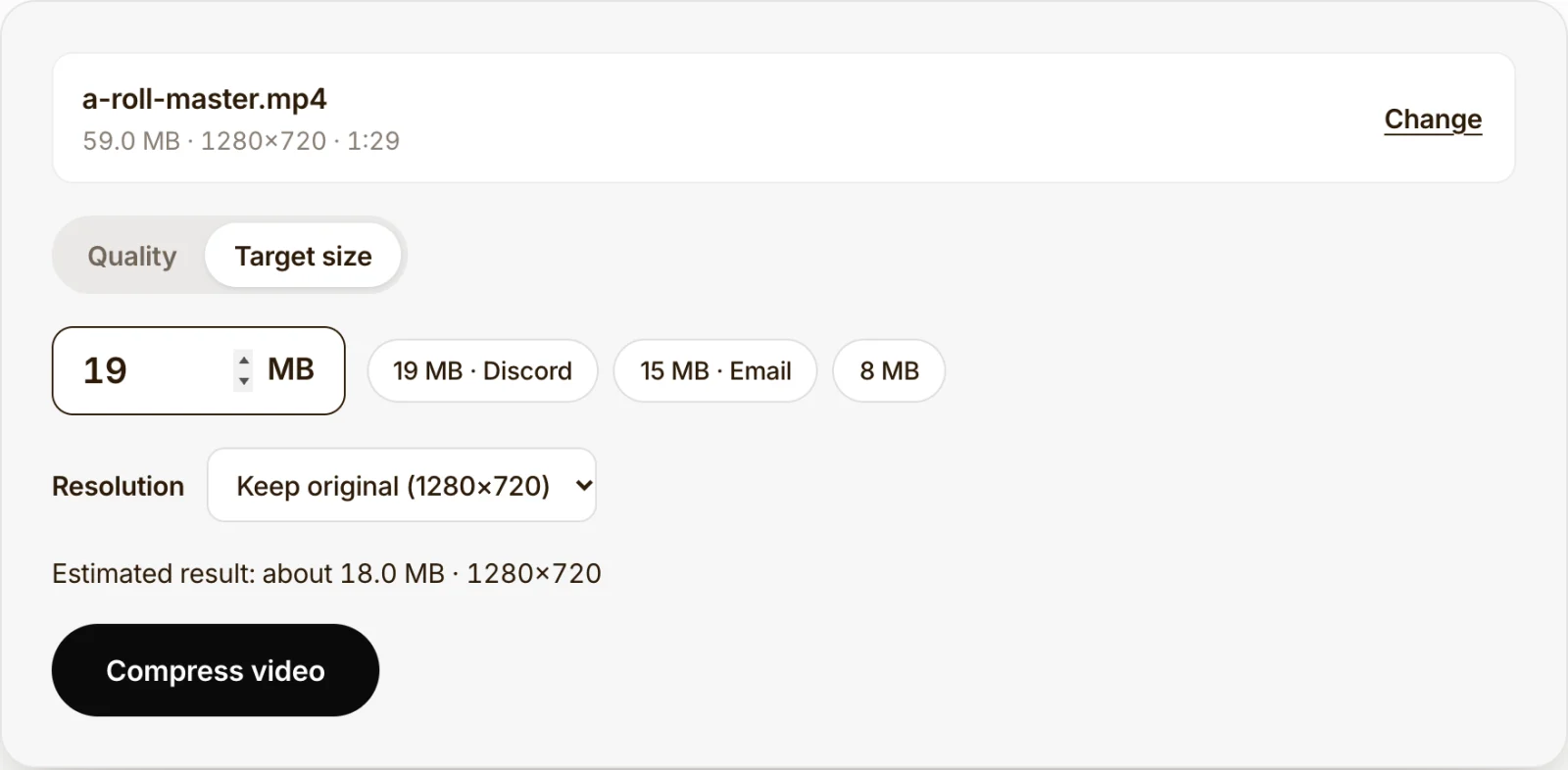
- Choose how small. Leave it on Quality and pick Smaller file, Balanced or Better quality, or switch to Target size and type the MB you need. The 19 MB · Discord and 15 MB · Email buttons fill in common targets. Under Resolution, pick a lower option if you need to go further; the tool only lists resolutions smaller than your source. Before you start, it shows an estimate of the result.
- Compress, check and download. Press Compress video. When it finishes, play the preview, compare the two sizes and press Download. Keep the tab open until it’s done.
In target-size mode, the tool divides your size budget by the video’s length to set the bitrate and aims slightly under. If the first pass comes out too big, it runs one tighter pass. The target isn’t guaranteed: a long video squeezed into a few MB may not get there, and the tool tells you so before you start.
For a Discord upload, the Discord video compressor gives you 10, 20 and 50 MB ceilings plus a resolution choice; at 20 MB and 720p, our file came out at 17.7 MB. For iPhone or camera recordings, Compress MOV can save the result as MP4 or keep the MOV container.
Method 2: QuickTime Player on a Mac (built in)
QuickTime can’t type in a target size, but it can save a smaller copy at a lower resolution.
- Open the video in QuickTime Player.
- Choose File → Export As and pick 720p or 480p. Options larger than your movie are dimmed.
- For 1080p or 4K, the Format menu offers Smaller File Size (HEVC) or Greater Compatibility (H.264). HEVC is smaller, but some Windows PCs and older apps can’t play it.
- Save the file.
The result is a QuickTime movie (.mov), not an MP4, as Apple’s QuickTime guide notes. QuickTime gives you no bitrate control, so the size depends on the original; if the copy is still too big, run it through Method 1 with a target size.
Method 3: HandBrake (Windows, Mac, Linux)
HandBrake is free, open source and built for this job.
- Open HandBrake and drag in your video.
- Pick a preset. Fast 1080p30 is the default; Fast 720p30 or Fast 480p30 make smaller files. For a size limit, the Web presets such as Social 25 MB 2 Minutes 540p60 are designed to keep a video of up to that length under 25 MB.
- Check that the format is MP4, choose where to save, and press Start Encode.
HandBrake’s official preset list shows what each preset produces. If your clip is longer than the duration in a Social preset’s name, the result may go over the size.
On Windows without installing anything, Clipchamp can export at 480p, 720p or 1080p, but it has no compression setting, and Microsoft notes its output can be larger than the original. A browser compressor or HandBrake is more predictable.
Method 4: FFmpeg (one command, any system)
FFmpeg is the command-line engine behind many compressors. These are the exact commands we ran on our 59 MB test file, with the results:
# Quality-based H.264 (CRF): higher numbers = smaller files. 23 is FFmpeg's default.
ffmpeg -i input.mp4 -c:v libx264 -crf 23 -preset medium -c:a aac -b:a 128k crf23.mp4   # 8.3 MB, 3.6 s
ffmpeg -i input.mp4 -c:v libx264 -crf 28 -preset medium -c:a aac -b:a 128k crf28.mp4   # 5.8 MB, 3.8 s

# Lower the resolution to 480p as well
ffmpeg -i input.mp4 -vf scale=-2:480 -c:v libx264 -crf 26 -c:a aac -b:a 96k 480p.mp4  # 3.7 MB, 2.1 s

# HEVC (H.265): smaller, but not every device plays it
ffmpeg -i input.mp4 -c:v libx265 -crf 28 -tag:v hvc1 -c:a aac -b:a 128k hevc.mp4       # 4.0 MB, 7.7 s

# Two-pass to a target size: (18 MB × 8,000) ÷ 88.7 s ≈ 1,623 kbps, minus 128 kbps audio
ffmpeg -i input.mp4 -c:v libx264 -b:v 1490k -pass 1 -an -f null /dev/null
ffmpeg -i input.mp4 -c:v libx264 -b:v 1490k -pass 2 -c:a aac -b:a 128k target.mp4    # 17.2 MB, 5.9 s
CRF lets the encoder decide the size from the content, so it often goes smaller than a fixed target; you just don’t know the size in advance. On Windows, replace /dev/null with NUL. FFmpeg’s software encoder squeezed our clip harder than the browser’s hardware encoder did, but remember our source had been compressed before, which makes it easier to compress again.
Method 5: On an iPhone
- Send it without shrinking it. In the Mail app, a video too big to attach can go by Mail Drop: attachments up to 5 GB, available to download for 30 days, per Apple’s Mail Drop limits.
- Record smaller next time. Go to Settings → Camera → Record Video and choose a lower resolution or frame rate. Higher resolutions and frame rates make larger files.
- Compress one you already have. Open the video compressor in Safari, choose the video from Photos and use a target size. Phones can handle files up to 500 MB; keep the screen on until it finishes.
Check the file before you send it
These are the problems we’ve seen, and how to fix them:
- It’s still over the limit. Use a target size a little under the limit (19 MB for a 20 MB cap), lower the resolution, or trim the video. A shorter clip leaves more data for every second you keep; cut the dull parts with the video trimmer first.
- “This file is already well compressed.” Files from YouTube, WhatsApp or another compressor have little left to remove. Choose a lower resolution instead of a lower quality preset.
- The output looks blocky. Too little data for the length and resolution. Raise the target, or drop to 720p or 480p: a clean 480p looks better than a smeared 1080p.
- The browser can’t read the file. Browser tools depend on the codecs your browser supports. HEVC (H.265) from iPhones opens in Safari and recent Chrome on Mac and Windows; if one browser refuses a file, try another, or use HandBrake or FFmpeg.
- The recipient can’t play it. HEVC copies are smaller, but some Windows PCs and older apps can’t play them. For sharing, H.264 MP4 is the safe choice; ChatCut’s compressor writes H.264 when the browser supports it.
- The email still bounces. Gmail’s 25 MB covers all attachments together, and other providers set their own limits (Outlook’s default for internet accounts is 20 MB). Attachments also grow by about a third when they’re encoded for sending. Aim for 15 MB, or send a link.
What to do with the video next
Compression is usually the last step before sharing. If you have a few more minutes:
- Cut it down. A shorter video is a smaller video. Trim the ends with the video trimmer, or remove silences and filler words in ChatCut.
- Add captions. Shared clips often autoplay with the sound off. Add word-by-word subtitles with the subtitle generator.
- Change the format. If an app wants MP4 and you have a MOV, see how to convert MOV to MP4.