
Hermes Agent is Nous Research’s open-source agent with reusable Hermes Agent skills, terminal and desktop interfaces, and a messaging gateway. For video work, connecting it to ChatCut Desktop adds an editable multi-track timeline alongside its code and media workflows. ChatCut Desktop supports macOS 13+ and Windows 10+ x64; it does not support Linux. We make ChatCut, the AI video editor used in this guide.
The walkthrough follows one 168.2-second attic talking-head recording into two 60.0-second 1080p master exports: 16:9 horizontal and 9:16 vertical. Eight editing passes cover transcription, rough cutting, captions, zooms and a whoosh, Motion Graphics, generated B-roll, ducked music, and export. This master project’s original recorded editing interval was 13 minutes 46 seconds. The 4-second Seedance 2.5 cutaway used in the finished video cost 4.38 ChatCut credits; removing garbled generated screen text required three generations in total (the original plus two retries), costing 13.14 credits. All other editing steps used 0 credits. The original interval excludes these later retries. Preparation and later media verification sit outside that interval; it is not a Hermes Agent speed benchmark.
How this guide was produced: The chat windows below are recreated Hermes Agent interface illustrations. The edit itself is one real shared master project completed in ChatCut Desktop through an external agent (Codex). A connected Hermes Agent can use the same ChatCut tools with these prompts; we did not run this project separately in Hermes Agent, and identical prompts do not guarantee identical editorial choices. Installation and capability details come from the official Hermes Agent documentation and our Hermes Agent connection guide. See also how to edit video with ChatGPT and Codex.
What can Hermes Agent do—and how do Hermes Agent skills, plugins, and MCP handle video?
For what can Hermes Agent do with video, distinguish three extension mechanisms:
- Hermes Agent skills:
SKILL.mdworkflow guides in~/.hermes/skills/, compatible with the Agent Skills specification. Instructions load on demand, andskills.external_dirscan include shared folders such as~/.agents/skills(Skills System). - Hermes Agent plugins: Runtime extensions, including Python packages with
plugin.yamlunder~/.hermes/plugins/. User-installed plugins can add tools, hooks, commands, or provider integrations; install withhermes plugins install <name>and enable them explicitly (Plugins guide). - Model Context Protocol: Connections configured under
mcp_serversin~/.hermes/config.yaml, supporting local STDIO and remote HTTP (MCP Integration; MCP standard). ChatCut Desktop uses a local connection to operate your selected project.
| Hermes Agent setup | Where it runs | What it is best at | What you get at the end |
|---|---|---|---|
| Research and media workflows | CLI, desktop app, or messaging gateway | Researching references and preparing scripts or assets | Briefs and files for later assembly |
| Code animation workflows | An environment with the required dependencies | Rendering animations with tools such as Manim or HyperFrames | Source code and rendered media to import into an editor |
| Hermes Agent + ChatCut Desktop | Same macOS 13+ or native Windows 10+ x64 computer | Rough cuts, captions, Motion Graphics, B-roll, and revisions | Editable local project, MP4 up to 4K (HDR on supported macOS computers), or Premiere / DaVinci XML |
For a broader look at how MCP bridges timeline editors and coding agents, see our comparisons of AI video agents and the best video editing MCP servers.
What does the finished 60-second edit look like?
Here is the finished 60.0-second horizontal cut exported at the end of the eight-step workflow, starting from one unedited 168.2-second attic recording:
The finished timeline combines these editable elements:
- 0:00 to 0:03: A transparent HTML title card (
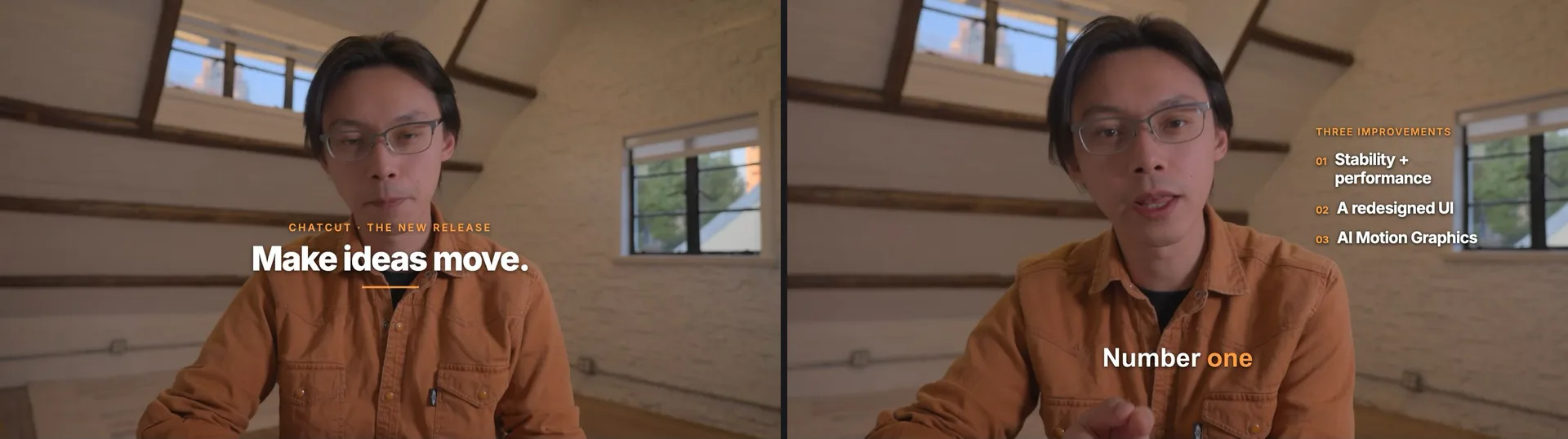
CHATCUT · THE NEW RELEASE/Make ideas move.) animates in and clears before the main argument starts. - Caption styling: Bold white lower-third captions (
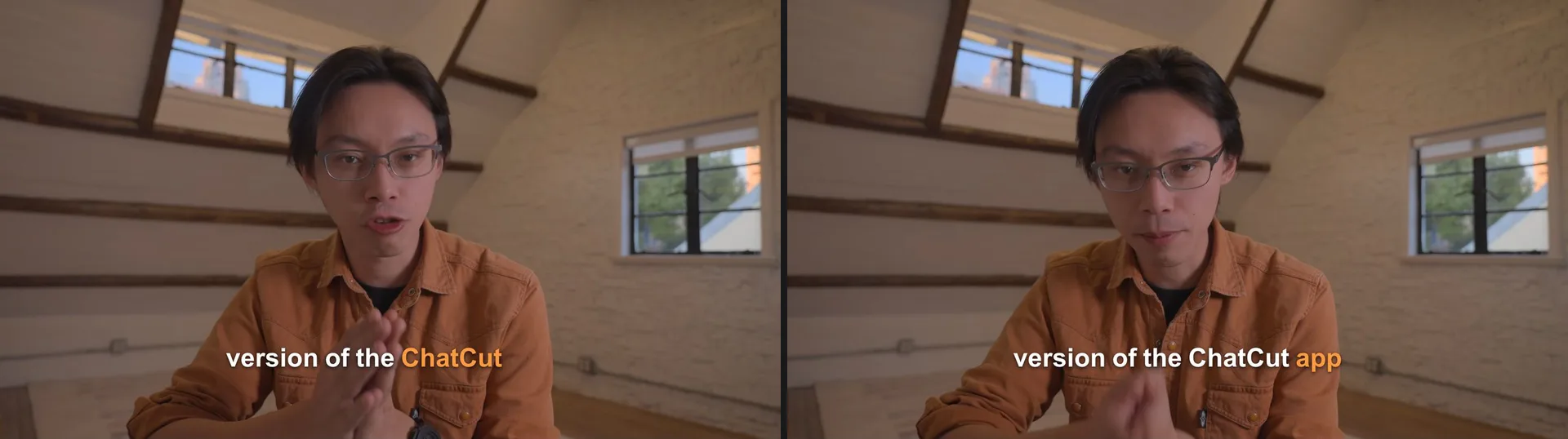
Arial 800) highlight only the word currently being spoken in #FF9B40 orange, with two misheard brand names (Checkout→ChatCut) corrected in the caption layer without touching the voice track. - 0:07.5 to 0:13.5: A right-aligned Motion Graphics callout (
THREE IMPROVEMENTS:01 Stability + performance,02 A redesigned UI,03 AI Motion Graphics) pairs with the first 1.18× spring punch-in zoom while staying clear of the speaker’s glasses and face. - 0:36 to 0:46: A subtle -14 dB library whoosh marks the topic shift into AI Motion Graphics, followed by a second punch-in zoom and a 4-second 720p Seedance 2.5 cutaway of a monitor on a wooden desk in a warmly lit attic, with a slow push-in toward a dark gray screen showing one large orange square above five colored blocks (42.5s–46.5s; 4.38 credits for the selected clip, 13.14 credits across three generations to remove garbled screen text). The screen is an abstract illustration, not real software UI or a complete multi-track timeline.
- 0:00 to 1:00: A CC BY 4.0 instrumental track (Relaxing Ambient Melodies by ViraMiller) fades in over 1.5s, ducks automatically beneath the voice (-20.3 LUFS integrated loudness, -2.0 dBFS peak), and fades out over 2.0s.
How to edit video with Hermes Agent: what are the five steps?
- Connect Hermes Agent to ChatCut Desktop. Install Hermes Agent and ChatCut Desktop on the same Mac or Windows PC, send
"Turn Hermes Agent into a video editor, read chatcut.io/desktop", sign in inside ChatCut Desktop, start a fresh session (/new), and run a read-only check of your active local project. - Import your footage and transcribe speech. Point Hermes Agent at your local video file (or import it in ChatCut Desktop) and ask it to import and transcribe the clip.
- Lock the A-Roll spine. Cut filler words, false starts, repeated takes, and dead air down to your target runtime, then layer word-level captions, punch-in zooms, and subtle transition sound cues.
- Add B-Roll, Motion Graphics, and ducked music. Place editable HTML titles and callouts, require an upfront credit quote before generating any AI video cutaway, and add an auto-ducked background track.
- Audit the timeline and export 16:9 or 9:16. Scrub the result in ChatCut Desktop—even if the window stayed closed while the agent worked—then export local MP4s or reframe a vertical 9:16 Short from the same cut.
What do you need before connecting Hermes Agent to ChatCut Desktop?
Operating-system and local-host boundaries
Choose a setup in which Hermes Agent can access the local project and Desktop connection:
- macOS 13 or newer: ChatCut Desktop supports both Apple silicon and Intel Macs (ChatCut Product Facts). Note that Nous Research’s packaged Hermes Agent desktop app (
.dmg) targets Apple Silicon (arm64) only; on an Intel Mac, install the Hermes Agent CLI viainstall.shinstead (Hermes Agent Platform Support). - Windows 10 or newer (x64): ChatCut Desktop supports native 64-bit Windows 10+. Install Hermes Agent natively in PowerShell (
iex (irm https://hermes-agent.nousresearch.com/install.ps1)) or via the signed MSIX bundle on Windows 11 22H2+ (Hermes Agent Installation). - Use the same host computer: Follow this guide with Hermes Agent on the Mac or native Windows host where ChatCut Desktop is installed. A remote or container installation does not automatically inherit that host’s MCP configuration or media paths. The
terminal.backendsetting controls shell execution; it is not the MCP connection setting. For phone messaging, runhermes gatewayon the editing computer and configure a supported platform (Messaging Gateway).
Model selection and two-meter billing
Hermes Agent supports multiple model providers: run hermes model in your terminal (or /model in chat) to route turns through Nous Portal (OAuth access to 300+ models plus Nous’s Tool Gateway), OpenRouter, Anthropic, OpenAI Codex subscriptions, xAI, DeepSeek, Qwen, or local endpoints via Ollama and vLLM (AI Providers).
When Hermes Agent drives ChatCut Desktop over MCP, costs split cleanly between your LLM provider and your ChatCut account:
| Part of the workflow | Which account pays | ChatCut credits in the 8-step master edit |
|---|---|---|
| Hermes Agent reasoning, tool calls, memory, and skill loading | Your chosen provider in hermes model (Nous Portal subscription, BYOK API key in ~/.hermes/.env, OAuth login, or local model) | 0 ChatCut credits (Credits policy) |
| Importing footage, cloud speech transcription, rough cuts, custom captions, zooms, library SFX, and agent-written Motion Graphics | ChatCut Free or paid plan | 0.00 ChatCut credits across Steps 2–6 and Step 8 |
| Local MP4, audio, subtitle, or Premiere / DaVinci XML export from ChatCut Desktop | ChatCut Free or paid plan (local Desktop rendering uses your computer and does not consume ChatCut credits; cloud exports include a free allowance, beyond which they follow ChatCut’s current credit rules—see Web vs Desktop Export) | 0.00 ChatCut credits for both 1920×1080 and 1080×1920 MP4s |
| ChatCut-hosted AI video, image, music, voiceover, or SFX generation | ChatCut account credits (Pricing starts at $25/mo for 100 credits; AI video and ChatCut image generation require a paid plan) | 4.38 ChatCut credits for the 4-second 720p Seedance 2.5 cutaway in the finished video; 13.14 credits across three generations to remove garbled screen text |
Why split your Hermes Agent edit into A-Roll and B-Roll passes?
For this tutorial, establish the spoken edit before adding supporting layers:
- A-Roll is your spoken spine: the camera take, transcript cuts, word-timed captions, and emphasis zooms that carry the argument on their own (Steps 2 through 5).
- Supporting passes add B-roll and other visual or audio layers around that spine: opening titles, structured callouts, generated cutaway footage, and ducked background music (Steps 6 through 8).
Locking the spoken cut first reduces later timing revisions. Review the rough cut, then add overlays and review any paid-generation quote before submission.
How do you cut a raw take into 16:9 and 9:16 videos step by step?
Step 1. Connect Hermes Agent to ChatCut Desktop
Once Hermes Agent is running on your Mac (macOS 13+) or Windows PC (Windows 10+ x64), start a conversation in the Hermes Agent terminal UI (hermes), the Hermes Agent desktop app, or open the ChatCut skill page for Hermes Agent and send:
Hermes Agent fetches the plain-text Desktop installation guide and runs the official installer (curl -fsSL https://chatcut.io/install.sh | sh on macOS or irm https://chatcut.io/install.ps1 | iex in Windows PowerShell—no Node.js or npm required). Complete browser sign-in inside ChatCut Desktop when prompted.
When ChatCut Desktop starts, it registers its local MCP server with supported agents it detects, including Hermes Agent and places ChatCut’s chatcut-* editing workflow skills into ~/.agents/skills (ChatCut Desktop guide). If you want Hermes Agent to surface those shared chatcut-* skills alongside ~/.hermes/skills/ in /skills, confirm ~/.agents/skills is listed under skills.external_dirs in ~/.hermes/config.yaml (External Skill Directories):
# ~/.hermes/config.yaml
skills:
  external_dirs:
    - ~/.agents/skills
Start a fresh Hermes Agent session (/new or relaunch hermes) so the new MCP toolset loads. Before making any edits, follow the safety habit from the ChatCut skill FAQ for Hermes Agent: ask Hermes Agent to run a read-only check on the active local project, summarize the project it found, and wait for your instructions. Once connected, ChatCut Desktop does not even need to keep its project window open while Hermes Agent edits (Edit a Desktop Project from Your Agent).
Step 2. Import the raw attic footage and transcribe speech
The source file for this edit is a 168.2-second (5,045 frames at 30 fps, 1920×1080) single-camera take recorded in a warm attic studio: the speaker, wearing an orange shirt, introduces a new ChatCut release with natural false starts, filler words, and repeated lines. Point Hermes Agent at the local clip in your selected project and ask it to import and transcribe:

You: Import this clip into ChatCut and transcribe it.
Hermes Agent: Imported the 2m 48s (168.2s, 1920×1080 @ 30fps) attic talking-head clip onto the timeline and finished word-level cloud transcription. Ready for the rough cut.
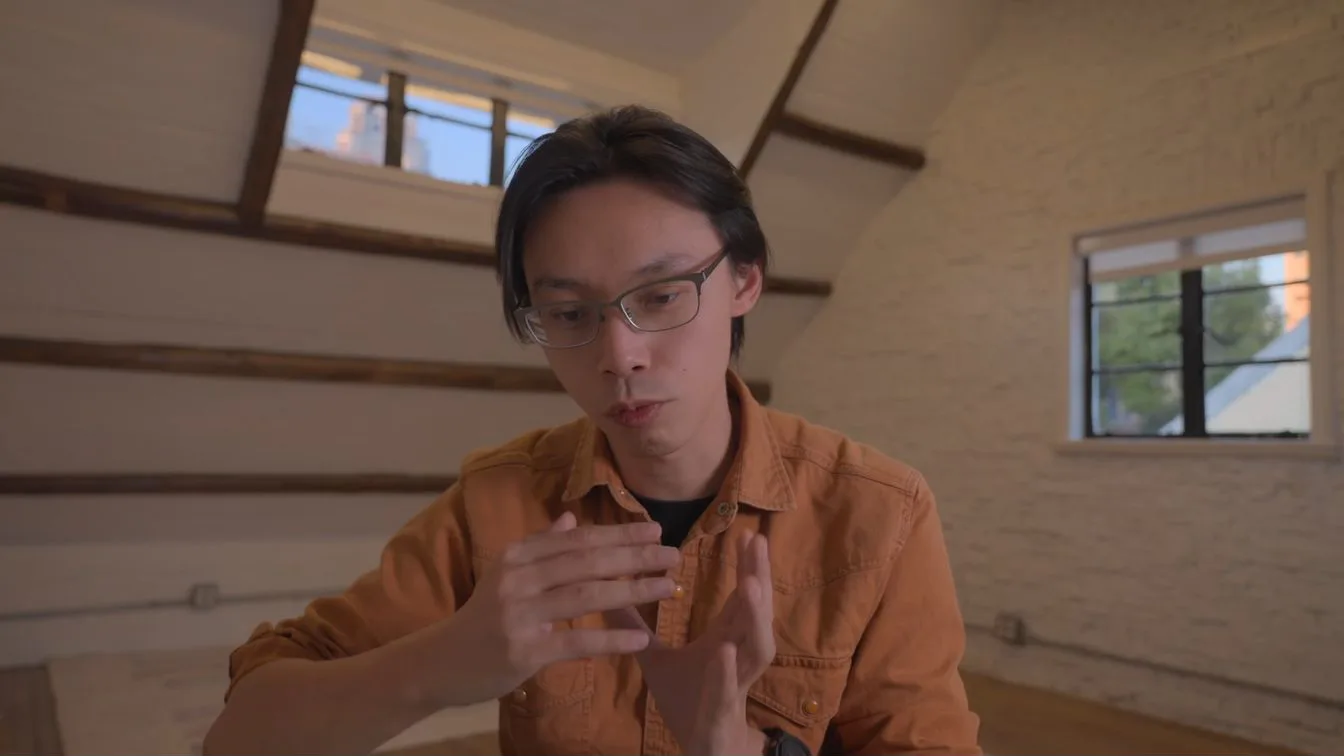
In the shared master project, importing the MP4 and completing transcription took 38 seconds and 0 ChatCut credits. At this stage the timeline still holds all 168.2 seconds with no captions applied.
Step 3. Cut 168.2 seconds down to a clean 60.0-second 16:9 spine
With a word-timed transcript mapped to the footage (text-based editing), give Hermes Agent a tight editorial target—exact aspect ratio, 60-second duration, and a rule to preserve the core argument while stripping hesitations and retakes:
You: Make a clean 60-second 16:9 cut: remove filler words, false starts, repeated lines and long pauses. Keep the main argument.
Hermes Agent: Trimmed 168.2s down to an exact 60.0s (1,800 frames) across 8 clean segments. Kept your intro, all three release pillars, and the wrap-up; removed 7 spoken fillers (uh/um/ah) and tightened three long pauses.
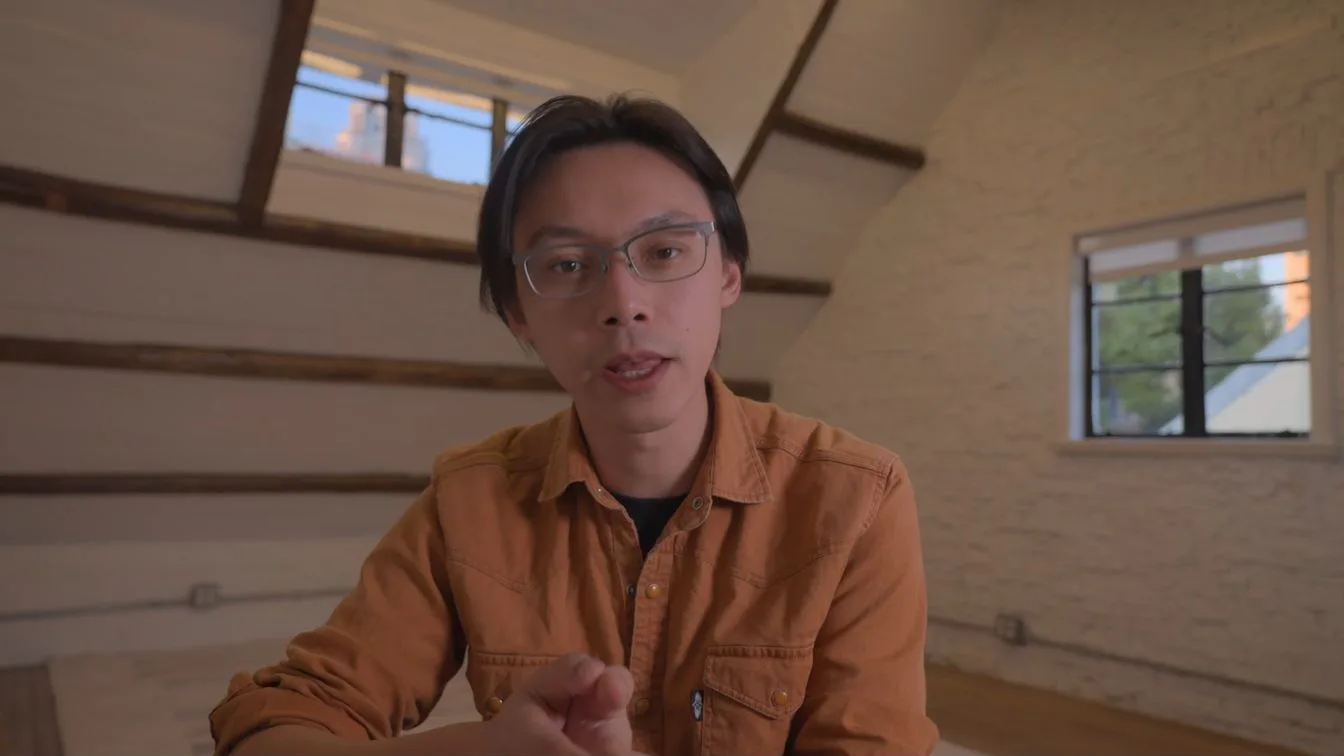
In the master project, this pass took 1 minute 33 seconds (0 ChatCut credits). The edit ran in two passes: an automated filler sweep removed 7 spoken fillers (4 "uh", 2 "um", and 1 "ah", saving 2.07 seconds), followed by a semantic script pass that dropped false starts and redundant examples to keep the hook, three product improvements (stability and performance, redesigned UI, and AI Motion Graphics), and closing line. Tightening three remaining gaps (1.60s → 0.35s, 2.16s → 0.40s, and 4.40s → 0.97s) brought the 8-segment 1920×1080 timeline from 66.43 seconds to an exact 60.0 seconds (1,800 frames).
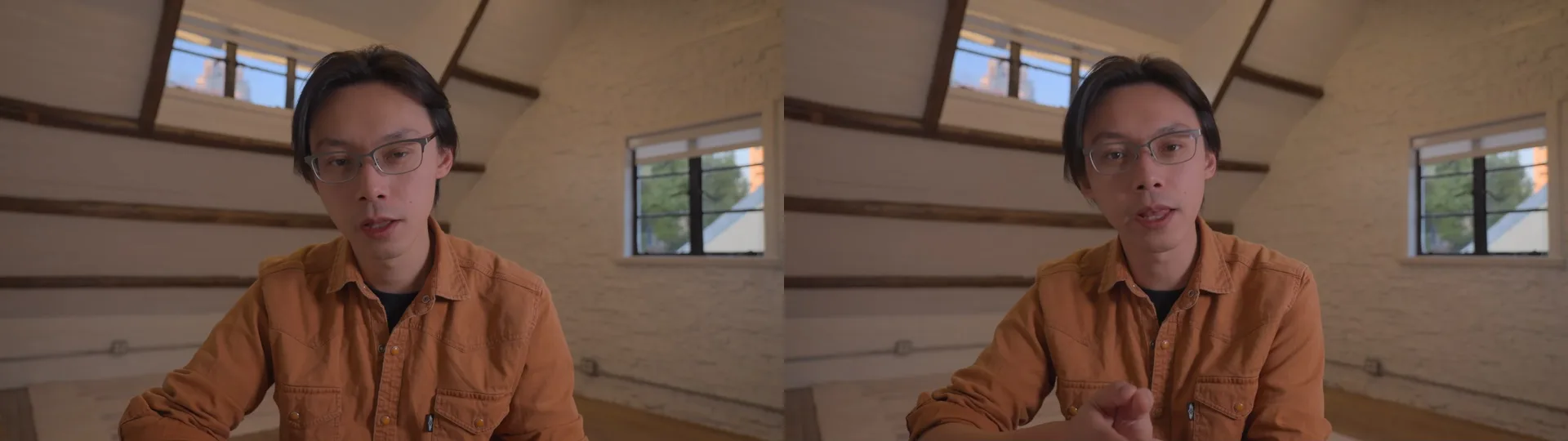
Step 4. Add lower-third captions with active-word orange highlighting
Once the spoken timing is locked, add AI captions in a dedicated turn so you can dictate typography, placement, and single-word emphasis:
You: Add word-by-word captions: bold white text, the spoken word highlighted in orange, placed in the lower third.
Hermes Agent: Added 64px bold Arial lower-third captions where only the active word lights up in #FF9B40 orange and returns to white afterward. Also corrected two 'Checkout' transcription mishears to 'ChatCut' in the caption layer.
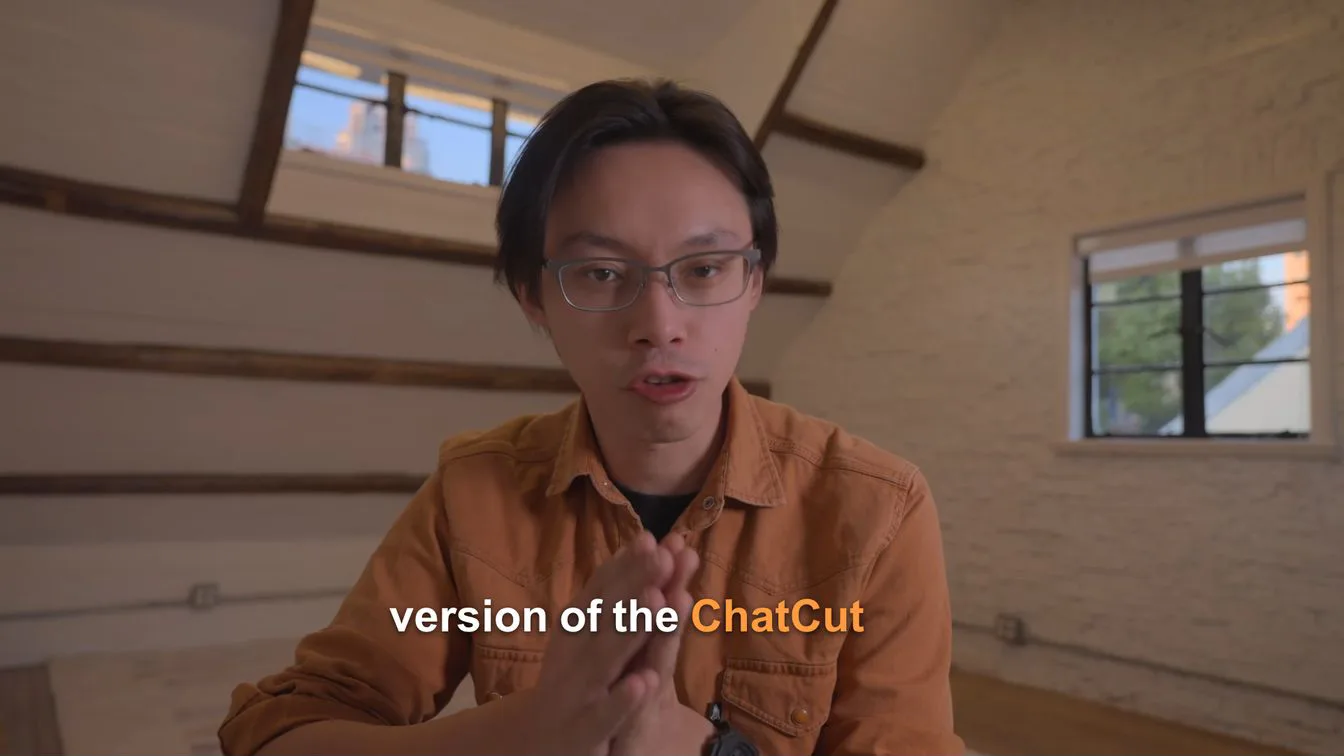
This master-project pass finished in 1 minute 6 seconds at 0 credits. Using a custom HTML caption template bound to word-level timestamps ensured that only the word currently being spoken turns #FF9B40 orange—returning previously spoken words to solid white instead of leaving the whole line orange—and corrected two speech-to-text mishears (Checkout → ChatCut) in the display text without cutting a frame of audio.
Step 5. Place spring punch-in zooms and a subtle transition whoosh
To keep a single-camera tripod shot from feeling flat without drowning every sentence in effects, ask for two targeted scale changes and one quiet transition cue:
You: Add two punch-in zooms on the key lines and a subtle whoosh where the topic changes.
Hermes Agent: Placed 1.18× spring punch-in zooms at 9.3s–12.7s and 38.5s–42.4s with full headroom, plus an Airy Short Whoosh from the built-in library at 36.4s (−14 dB) right as you pivot to AI Motion Graphics.
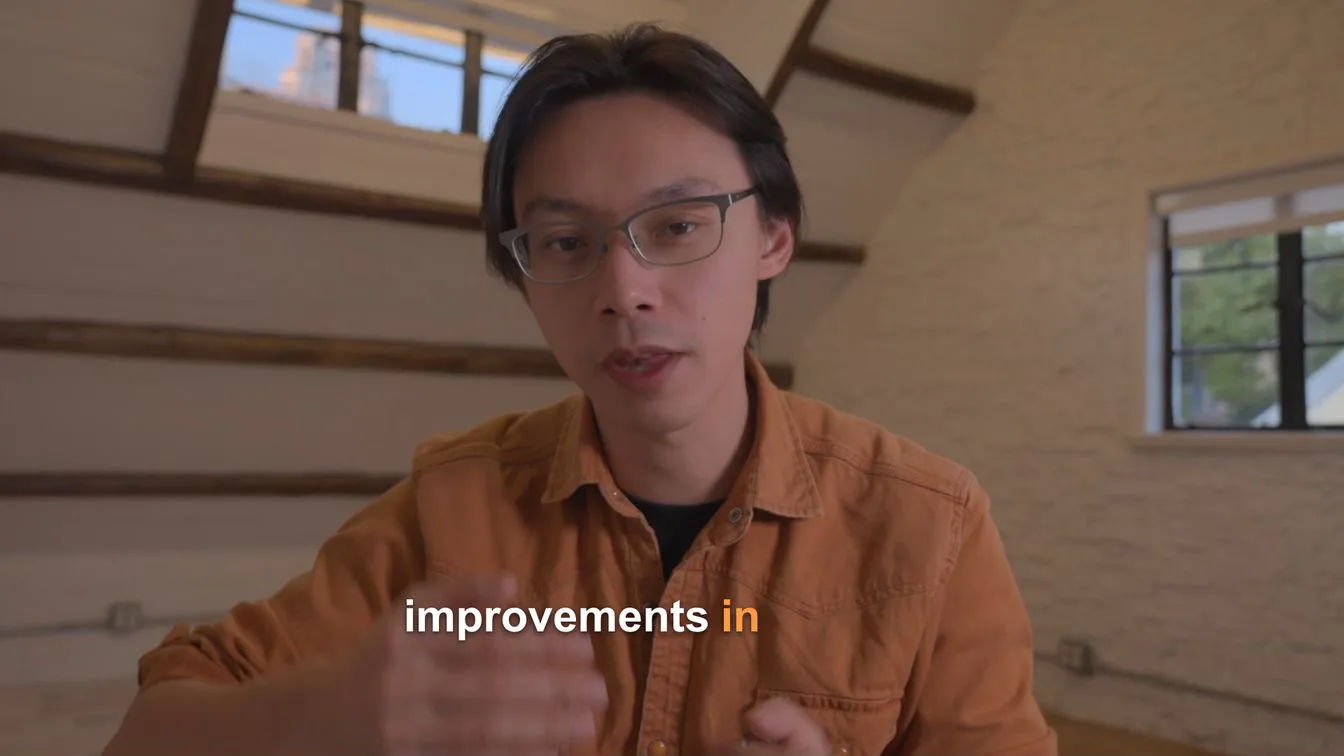
In the master project, this pass took 25 seconds (0 ChatCut credits). The two 1.18× native spring punch-ins (9.33s–12.67s on stability and performance, and 38.50s–42.37s on AI Motion Graphics) add subtle forward energy while keeping the speaker’s head and glasses cleanly framed, and the built-in library’s Airy Short Whoosh (36.43s–37.20s at -14 dB) marks the third topic shift without spending generation credits. That locks the A-Roll.
Step 6. Author an animated opening title and a three-point Motion Graphics callout
Now the B-Roll pass starts. Rather than baking flat text into pixels, ChatCut lets connected agents write editable AI Motion Graphics overlays directly onto the timeline:
You: Add a 3-second animated title at the start and a Motion Graphics callout that lists the three points I make.
Hermes Agent: Added a 0–3s opening title ('Make ideas move.' with eyebrow 'CHATCUT · THE NEW RELEASE') and a 7.5s–13.5s right-side callout listing your three points in matching warm orange-and-white editorial type.
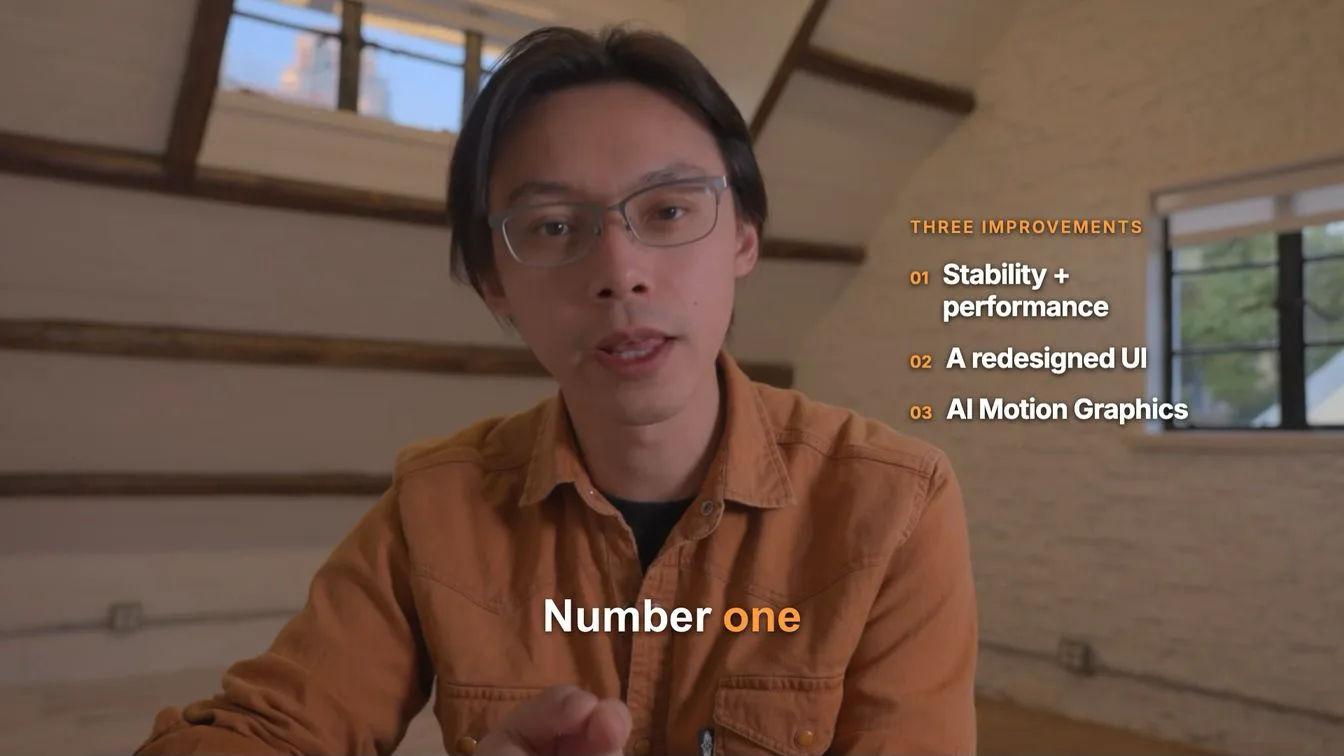
In the master project, this pass took 1 minute 51 seconds (0 ChatCut credits). Two transparent HTML Motion Graphics components landed on upper tracks in a warm editorial palette matching the speaker’s orange shirt and #FF9B40 captions: a centered 0.0s–3.0s title (CHATCUT · THE NEW RELEASE / Make ideas move.) with an expanding accent rule, and a 7.5s–13.5s right-side numbered list (01 Stability + performance, 02 A redesigned UI, 03 AI Motion Graphics) tucked into the open attic wall space clear of both the presenter’s face and lower-third captions.
Step 7. Quote and generate one 4-second AI B-roll cutaway
When your spoken script describes something visually concrete—here, AI Motion Graphics illustrated by abstract colored blocks on a monitor—and you have no second camera angle, ChatCut’s AI video generator (paid plan required) can generate a cutaway clip in the same project. Always instruct Hermes Agent to report the credit estimate first:
You: Generate one short B-roll shot that fits what I'm describing and place it over one line. Tell me the credit cost first.
Hermes Agent: The selected 4-second, 720p, 16:9 Seedance 2.5 cutaway cost 4.38 credits. It slowly pushes toward a monitor on a wooden desk in a warmly lit attic: one large orange square above five blocks—cyan, purple, green, orange, and blue—on a dark gray screen. This is an abstract illustration, not real software UI or a complete multi-track timeline. Placed at 42.5s–46.5s with your voice and captions underneath. Removing garbled screen text took three generations in total, costing 13.14 credits; the 4.38-credit quote covers one generation only.
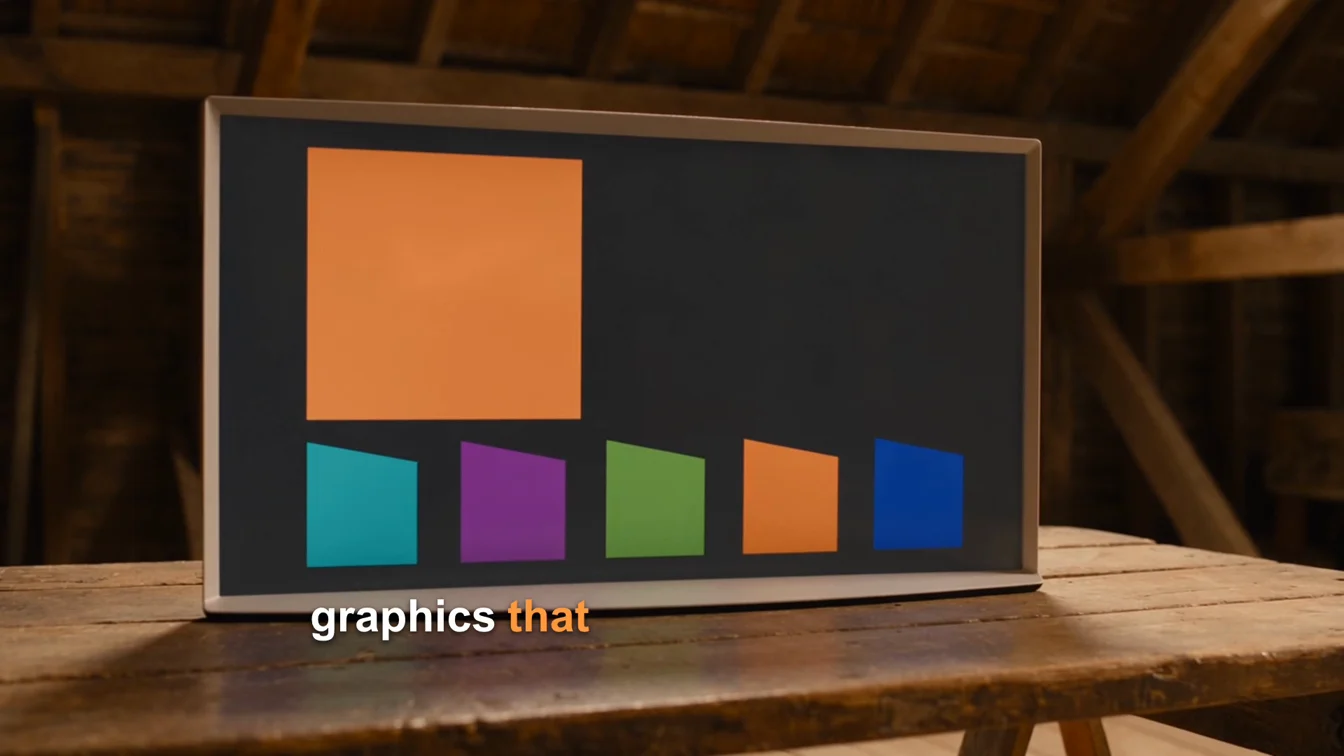
ChatCut’s pricing estimator returned 4.38 credits for one 4-second, 720p, 16:9 Seedance 2.5 generation. The finished cutaway slowly pushes toward a monitor on a wooden desk in the warmly lit attic; its dark gray screen contains one large orange square and a row of five blocks in cyan, purple, green, orange, and blue. This is an abstract illustration, not real software UI or a complete multi-track timeline. If your quote exceeds your budget, stop and choose existing footage or request a separately quoted alternative. Including cloud rendering and placement at 42.5s–46.5s over the AI Motion Graphics sentence—with the presenter’s voice and orange-highlighted captions kept intact—the original M0 master-project step took 5 minutes 29 seconds. That timing excludes the later retries. The clip used in the finished video cost 4.38 ChatCut credits; removing garbled screen text required three generations (the original plus two retries), totaling 13.14 credits.
Step 8. Add a calm music bed with automatic voice ducking
To bind the 8 spoken cuts and the B-roll cutaway into one cohesive piece without competing with speech, add background music with automatic ducking:
You: Add a calm music bed and duck it under my voice.
Hermes Agent: Added 60s of 'Relaxing Ambient Melodies' (CC BY 4.0) with a 1.5s fade-in and 2.0s fade-out, linked to your voice as the ducking anchor while leaving the transition whoosh independent (−20.3 LUFS integrated mix).
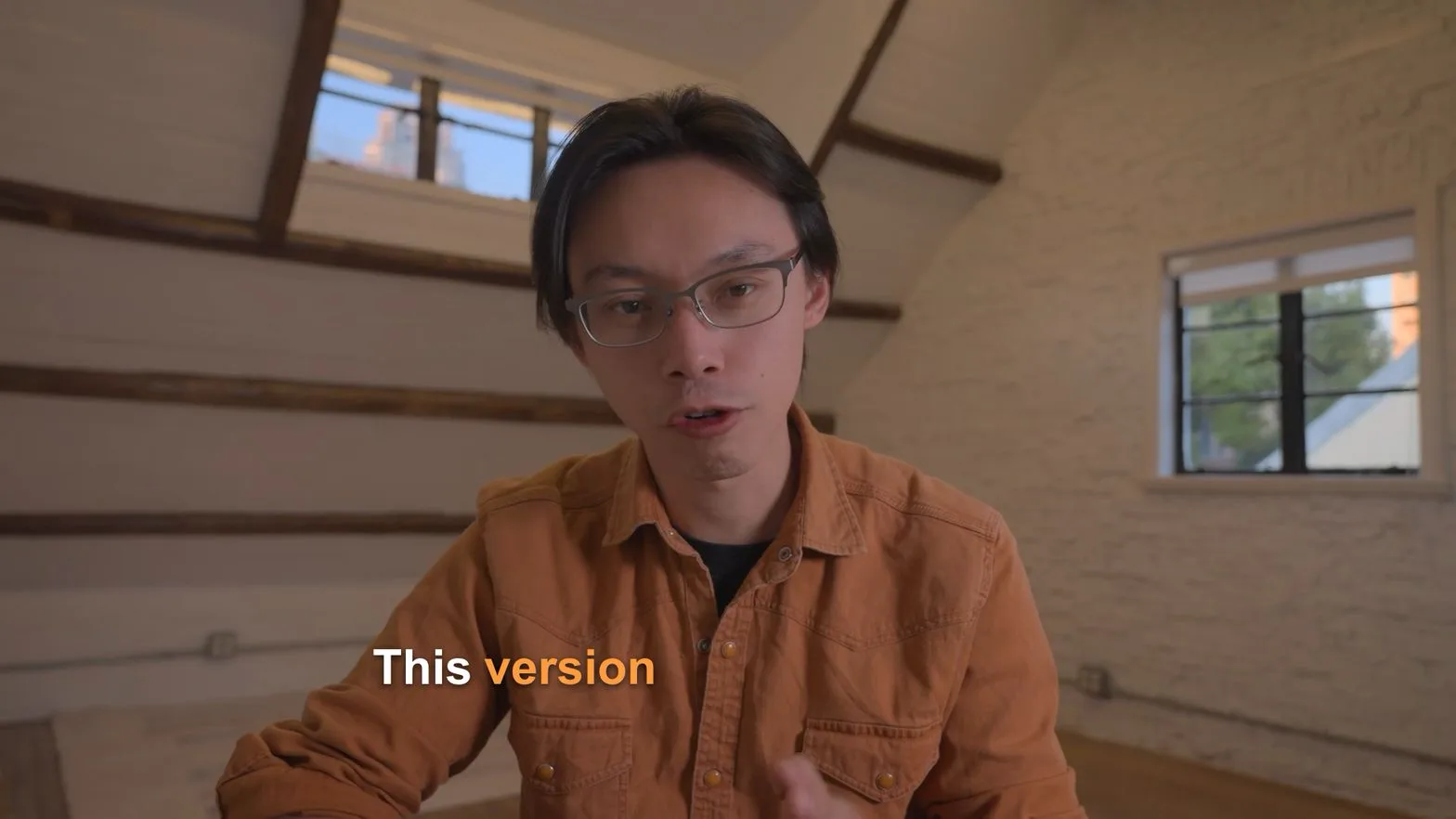
In the master project, this pass took 50 seconds (0 ChatCut credits). It pulled the first 60 seconds of ViraMiller’s Relaxing Ambient Melodies (CC BY 4.0) rather than billing a paid AI music generation job, applied a 1.5-second fade-in and 2.0-second fade-out, and configured the voice track as the ducking anchor with the music track as follower (keeping the 0:36 whoosh independent). Native audio analysis across the full 60-second timeline measured -20.3 LUFS integrated loudness and -2.0 dBFS reported peak (-24.7 dBFS RMS on voice vs. -27.3 dBFS RMS on music).
Step 9. Export the 1080p 16:9 MP4 and reframe a 9:16 vertical Short
Finally, render the finished 16:9 master locally and spin out a 9:16 vertical version from the exact same cut for YouTube Shorts, Reels, or TikTok:
You: Export a 1080p 16:9 MP4.
Hermes Agent: Exported the 60.0s 1920×1080 H.264/AAC MP4 locally (94.6 MB, 0 credits).
You: Now make a 9:16 vertical version for Shorts from the same edit, keeping the speaker centered, and export it too.
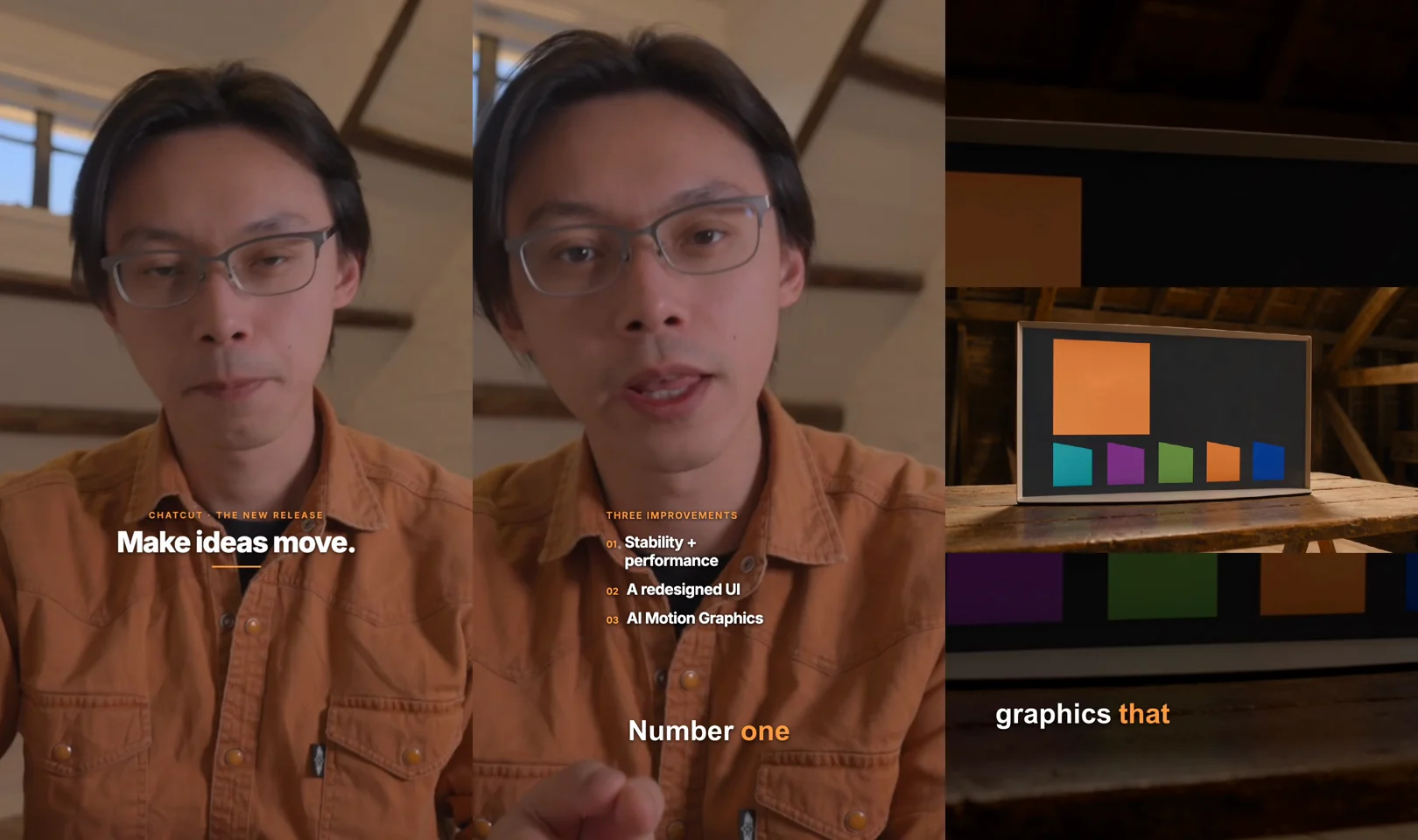
Hermes Agent: Duplicated the cut onto a 'Shorts · 9x16' timeline, centered you in 9:16, resized the title and 3-point callout so nothing clips, nested the 16:9 monitor B-roll over a darkened backdrop, and exported a 60.0s 1080×1920 MP4 (92.2 MB, 0 credits).
The master project’s export-and-reframe pass took 1 minute 50 seconds at 0 ChatCut credits (exporting guide). Rather than blindly center-cropping every track—which would slice off the edges of wide Motion Graphics and chop both sides of the horizontal studio monitor cutaway—the Shorts · 9x16 timeline centered the speaker, resized the opening title and THREE IMPROVEMENTS list to fit 1080×1920 margins, and stacked the full 16:9 B-roll monitor over a -3 EV darkened background duplicate:
| Master-project pass | What changed on the ChatCut Desktop timeline | Recorded elapsed time (original M0 run; excludes retries) | ChatCut credits (including B-roll retries) |
|---|---|---|---|
| 1. Import & transcribe | Imported 168.2s 1080p clip; generated word-timed transcript | 0:38 | 0.00 |
| 2. 60s semantic rough cut | Removed 7 fillers and retakes; shortened 3 pauses into 8 segments (60.0s / 1,800f) | 1:33 | 0.00 |
| 3. Active-word captions | Styled 64px white/orange lower-third HTML captions; fixed 2 brand nouns | 1:06 | 0.00 |
| 4. Zooms & whoosh SFX | Added two 1.18× spring punch-ins + -14 dB library Airy Short Whoosh | 0:25 | 0.00 |
| 5. Title & 3-point callout | Authored 0–3s opening title + 7.5–13.5s THREE IMPROVEMENTS overlay | 1:51 | 0.00 |
| 6. AI B-roll cutaway | Placed 4s 720p Seedance 2.5 abstract monitor shot; three generations to remove garbled screen text | 5:29 | 4.38 for the selected clip; 13.14 across all three generations |
| 7. Music & auto-ducking | Added 60s CC BY 4.0 ambient track, fades, and voice-anchored ducking (-20.3 LUFS) | 0:50 | 0.00 |
| 8. 16:9 + 9:16 exports | Exported 1920×1080 MP4 (94.6 MB) + reframed 1080×1920 Short (92.2 MB) | 1:50 | 0.00 |
| Original recorded interval (8 passes) | One raw take → horizontal master + vertical Short; credits include later B-roll retries | 13:46 | 13.14 total; selected cutaway 4.38, other steps 0.00 |
For finishing in Adobe Premiere Pro or DaVinci Resolve, ChatCut also offers FCP7 XML (XMEML) and local CapCut or Jianying draft export (XML export guide). Those interchange formats were not exercised in this master run.
What are the most useful video-related Hermes Agent use cases and skills?
These are suggested combinations of documented capabilities, not additional workflows tested for this article. Explore the Hermes Agent Marketplace and scheduled-job documentation for extensions and automation.
- Research to recording brief: Use Hermes Agent to organize reference transcripts and draft a talking-head outline; after recording, ask the connected editor to make the cut.
- Code animation inserts: Render a diagram or product animation in your chosen code tool, then import the resulting clip above the spoken track.
- Reusable channel rules: Ask Hermes Agent to save caption colors, pause targets, and generation budgets as a skill. Its documented skills system supports creating reusable instructions and invoking installed skills with slash commands.
- Remote prompts to a studio computer: Configure the messaging gateway on the editing machine, then send requests from a supported service such as Telegram or Discord. Confirm that instance can read the intended project and media before scheduling unattended work.
Which prompts can you copy for common Hermes Agent video edits?
Once ChatCut Desktop is connected to Hermes Agent, paste and adapt these single-pass briefs (for more templates across formats, see our video editing prompts collection):
Zero-credit talking-head cleanup
Long-form podcast or interview to 9:16 Shorts
Pair this prompt with our walkthrough on turning long videos into Shorts:
Developer demo or product walkthrough
What do you still need to check yourself before publishing?
The master run used selected preview frames, parameter checks, and full decode checks. It did not complete a subjective end-to-end audio review. Before publishing, make these checks yourself:
- Proper nouns and brand capitalization in captions: Automated speech-to-text heard
"ChatCut"as"Checkout"twice in our attic recording (f136). Always skim your caption track against the audio—especially for product names, CLI flags, and model versions (see the W3C WAI captions guide for readability standards)—and edit typos in the Captions text layer rather than deleting words from the Transcript (which cuts video frames). - Frame-by-frame checks of AI-generated B-roll: The replacement 4-second Seedance 2.5 cutaway passed frame-by-frame review with an abstract orange square and five colored blocks on a dark gray monitor screen. Generated screens and signs commonly contain garbled text; specify
no text, no letters, no logosin the prompt, inspect every frame, and budget for retries. Here, the original and first retry were rejected; the second retry passed, bringing three generations to 13.14 credits, with 4.38 credits for the selected clip. This is a generation-model limitation. Capture real screen recordings whenever viewers need to read actual software UI. - 9:16 vertical margins on wide graphics and cutaways: A naive 16:9 → 9:16 center crop clips wide titles and slices both sides off horizontal monitor shots. Always scrub your 9:16 timeline at title, callout, and cutaway timestamps to confirm text sits inside vertical safe zones.
- Headphone audio check and licensing/disclosure rules: Loudness meters (-20.3 LUFS, -2.0 dBFS peak) describe measured levels; they do not establish listening quality or whether a fast cut clipped an intake breath. Play the exported
.mp4from start to finish with headphones, keep required attributions such as CC BY 4.0 music credits, and follow platform rules such as YouTube’s altered or synthetic content disclosure policy when publishing realistic generated scenes.
How do you fix common Hermes Agent and ChatCut Desktop issues?
ChatCut tools do not show up in Hermes Agent after setup
First confirm that you signed in inside the ChatCut Desktop window on the same computer. Next, open a fresh Hermes Agent session (/new in chat, or exit and restart hermes), because MCP tool catalogs load when a session starts. You can also click the agent icon at the top of the ChatCut Desktop sidebar (Agents on this computer) to check Hermes Agent’s connection status or click Reconnect (ChatCut Desktop MCP setup).
Hermes Agent runs in WSL2, Docker, or a Linux server and cannot see the local project
A remote or container instance has its own configuration and file paths. The documented ChatCut setup uses Hermes Agent on the same Mac or native Windows computer as Desktop. Use that setup for this walkthrough and recheck the selected project; changing the shell backend alone does not configure MCP.
Shell commands inside Hermes Agent hang or time out
Hermes Agent executes shell calls non-interactively (without a TTY). Per the Hermes Agent Tools guide, interactive prompts, tmux auto-attach blocks, or slow nvm initialization placed at the top of ~/.bashrc or ~/.zshrc can stall tool execution—including the ChatCut installer script. For Bash, keep heavy or interactive initialization below the documented non-interactive guard. For Zsh, keep .zshenv minimal and put interactive setup in .zshrc.
A paid AI video generation takes several minutes—how do you avoid double billing?
The master project’s generation-and-placement pass took 5 minutes 29 seconds; other jobs can take different amounts of time. If a tool wait reaches its single-turn timeout, do not resend your original "Generate one short B-roll shot..." prompt, because resubmitting can create another billable job (ChatCut Product Facts). Ask Hermes Agent to check the status of the existing in-flight generation job and place that clip once complete.
How did we build and verify this guide?
ChatCut Inc. publishes this first-party guide. On November 18, 2026, the shared master run used Codex to edit mg-teaser.mp4 (168.167s) into two 60.000s 1080p masters in ChatCut Desktop. Its report records ffprobe checks, full audio/video decoding, selected preview frames, loudness measurements, and a settled 4.38-credit generation receipt for the original run. The replacement cutaway passed frame-by-frame review and cost 4.38 credits; the original plus two retries to remove garbled screen text cost 13.14 credits in total, with all other editing steps at 0 credits. No separate Hermes Agent edit or performance benchmark was run. The conversation cards are illustrations, and subjective full-length listening and final visual acceptance remain outstanding. Hermes Agent installation and capabilities were checked against its official repository and documentation on the same date. Music: Relaxing Ambient Melodies by ViraMiller, CC BY 4.0; the sample uses its first 60 seconds with fades and automatic ducking.
Frequently asked questions about editing video with Hermes Agent
Can Hermes Agent edit videos on a real timeline?
How do I install the ChatCut skill in Hermes Agent?
What is the difference between Hermes Agent skills, Hermes Agent plugins, and MCP?
Does ChatCut Desktop work with Hermes Agent on Linux, Docker, or Intel Macs?
Which AI models can I use when editing video through Hermes Agent?
Does ChatCut Desktop have to stay open while Hermes Agent edits my project?
How much does it cost to edit a video with Hermes Agent and ChatCut?
Using a different agent? The same ChatCut edit works from ChatGPT, Codex, Claude Code, Cursor, Antigravity, Grok Bot, OpenClaw, Meta Muse and WorkBuddy; each guide covers that agent’s install and quirks.