To learn how to edit video with OpenClaw, connect OpenClaw to ChatCut Desktop on your Mac or Windows PC. OpenClaw’s Gateway connects supported chat apps to tools on your computer. Once the local OpenClaw MCP connection and OpenClaw skills are configured and verified, you can send editing instructions from your phone and work with local footage on an editable multi-track timeline in ChatCut’s AI video editor.
Disclosure: ChatCut is our product. For other agent workflows, see our comparison of AI video agents and our step-by-step guide on how to edit video with ChatGPT and Codex.
How this walkthrough was produced: The chat windows below are code-built illustrations of the OpenClaw interface, with replies summarizing one real master project edited in ChatCut Desktop by an external agent. A connected OpenClaw setup can use the same ChatCut tools with these prompts; this is not a separate successful OpenClaw editing run or a guarantee of identical model decisions. All elapsed times and credit figures below belong to the master project. Setup follows current OpenClaw documentation; check command support in your installed version.
What does the finished 60-second edit look like?
Below is the finished 60.0-second 1080p cut produced from a single 2-minute-48-second (168.2s) raw attic talking-head recording, using eight editing passes in the master project. The B-roll clip used in the final cut cost 4.38 ChatCut credits; generating this shot three times to eliminate garbled screen text cost 13.14 credits in total. All other steps cost 0 credits:
Watch for five distinct layers stacked onto one editable timeline:
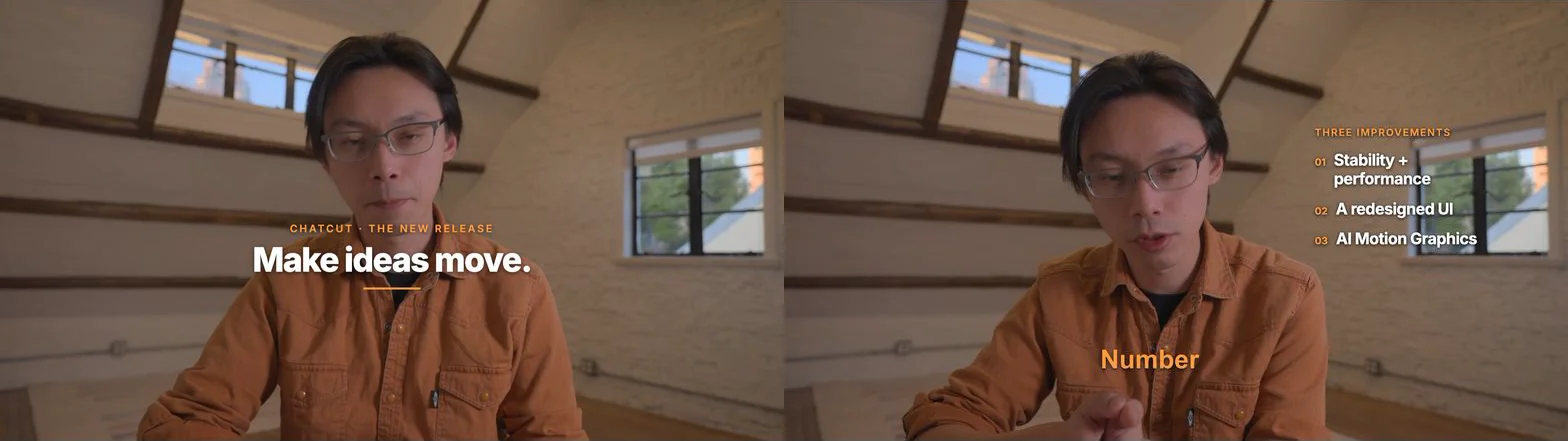
- 0:00 to 0:03: A transparent HTML opening title (
CHATCUT · THE NEW RELEASE/Make ideas move.) animated over the presenter’s opening beat. - 0:07.5 to 0:13.5: A right-aligned three-point Motion Graphics callout (
01 Stability + performance,02 A redesigned UI,03 AI Motion Graphics) paired with the first 1.18× spring punch-in zoom. - Throughout the spoken sections: Lower-third bold white captions where only the word currently being spoken turns orange (#FF9B40), with two misheard brand mentions (
Checkout→ChatCut) fixed in the caption layer. - 0:36.4 to 0:46.5: A subtle -14 dB library whoosh on the topic transition, a second punch-in zoom, and a 4-second 720p Seedance 2.5 cutaway of a monitor on a wooden desk in a warmly lit attic, with abstract orange and colored blocks on its screen (42.5s–46.5s; 4.38 credits for the final clip, 13.14 credits across three generations to eliminate garbled screen text).
- 0:00 to 1:00: A CC BY 4.0 ambient bed (Relaxing Ambient Melodies by ViraMiller) with a 1.5-second fade-in, automatic voice ducking (the master project’s full mix measured -20.3 LUFS integrated), and a 2.0-second fade-out—followed by a reframed 9:16 vertical Short exported from the same cut.
How do you edit a video with OpenClaw in five steps?
- Install ChatCut Desktop on your Gateway computer. On the Mac (macOS 13+) or Windows 10+ (x64) PC running your OpenClaw Gateway, send
Read ChatCut.io/desktop to install ChatCutto follow the official ChatCut Desktop installation guide, then verify the local connection before editing. - Pick your chat channel and point to local footage. Message your OpenClaw bot from Telegram, Discord, WhatsApp, Feishu, or the local Control UI (
openclaw dashboard) and tell it which local video file to import and transcribe. - Lock the A-Roll spine first. Trim filler words, false starts, and long pauses to hit your target duration, then layer word-level captions, punch-in zooms, and subtle transition sound effects.
- Add B-Roll overlays, cutaways, and ducked music. Ask for agent-authored Motion Graphics (0 ChatCut credits), require a credit quote before any paid AI video generation, and duck background music under your voice.
- Export locally or refine by hand. Render watermark-free MP4s (16:9 and 9:16, up to 4K, with HDR available on macOS) right onto your drive, or open ChatCut Desktop at your desk to nudge cuts, text, and levels manually.
How does OpenClaw connect chat channels, MCP, plugins, and models to ChatCut?
OpenClaw splits the chat surface from the execution machine through its local Gateway daemon (listening by default on port 18789; see OpenClaw Getting Started):
- Edit source footage locally. ChatCut Desktop runs natively on macOS 13+ (Apple silicon or Intel) and Windows 10+ (x64) (ChatCut Product Facts). When OpenClaw’s Gateway runs on that same computer, it talks to ChatCut Desktop over local MCP, without first moving the entire source library to a cloud editing machine. Transcription uses a cloud service, and hosted generation may upload required references; this is not an offline-only workflow.
- Your remote control lives in a supported chat channel. OpenClaw routes messages from supported chat channels—including Telegram (bundled core plugin, fastest setup via bot token), Feishu / Lark (
@openclaw/feishu, using a default WebSocket long connection that needs no public webhook URL; see Feishu channel docs), Discord (@openclaw/discord), WhatsApp (@openclaw/whatsappQR pairing), Slack, Signal, and iMessage—straight to your local Gateway. Even though ChatCut Desktop does not run on Linux, you can message a Mac or Windows Gateway from an iPhone, Android phone, or Linux laptop.
Because OpenClaw has three extension layers—OpenClaw skills, OpenClaw plugins, and OpenClaw MCP—it helps to know what each layer actually owns in a video workflow:
| OpenClaw layer | What it actually is (per OpenClaw docs) | CLI / config entry point | Role when editing video with ChatCut |
|---|---|---|---|
| OpenClaw MCP (Connect MCP servers) | Client connection (stdio, streamable-http, or sse) that borrows live tools from another program under mcp.servers | openclaw mcp add, openclaw mcp doctor <name> --probe, or Settings → MCP | Connects OpenClaw to ChatCut’s local editing tools so the agent can create timelines, edit transcripts, style captions, author Motion Graphics, and export MP4/XML |
| OpenClaw skills (Skills & ClawHub) | Markdown instruction bundles (SKILL.md + YAML frontmatter) loaded from <workspace>/skills, ~/.agents/skills, or clawhub.ai | openclaw skills search, openclaw skills install @scope/name | Teaches the agent how and when to sequence editing passes (for example, ChatCut’s bundled talking-head, caption, and Motion Graphics workflow skills) |
| OpenClaw plugins (Plugins) | Runtime code packages adding chat channels, LLM providers, speech/TTS, or media backends | openclaw plugins install <package>, openclaw plugins inspect <id> --runtime | Adds messaging channels like @openclaw/feishu or @openclaw/discord, model providers, and optional inbound voice transcription |
Which models and billing meters apply?
OpenClaw supports multiple model providers. Its onboarding flow can reuse a detected Claude Code or Codex CLI login, or accept provider API credentials. Choose a configured model with openclaw models set <provider>/<model>. Verify tool use with a small editing request; this article does not rank models.
Billing stays split cleanly between your OpenClaw model provider and ChatCut:
| Part of the workflow | Who bills for it | ChatCut credits in our 8-step master edit |
|---|---|---|
| OpenClaw Gateway, chat channels (Telegram, Discord, WhatsApp, Feishu), and LLM tool-calling turns | OpenClaw is free open-source software; LLM tokens follow your chosen provider API key, reused CLI login, or local model | Not part of the master-run ChatCut bill; provider usage is separate |
| Importing local clips, cloud speech transcription, rough cuts, word-level captions, punch-in zooms, library SFX, and agent-written HTML Motion Graphics | ChatCut Free or paid plan (Credits policy) | 0.00 ChatCut credits (master passes 1–5 and 7) |
| Local MP4 (up to 4K, with HDR on macOS), audio, SRT, or Premiere/DaVinci XML export | ChatCut Free plan renders locally on your Mac or PC without watermarks or credit charges | 0.00 ChatCut credits (both 16:9 and 9:16 1080p MP4s) |
| ChatCut-hosted AI video, image, music, voiceover, or SFX generation | ChatCut account credits (Pricing, paid plans from $25/mo for 100 credits; AI video generation requires a paid plan) | 4.38 ChatCut credits for the final 4-second 720p Seedance 2.5 clip; 13.14 credits across three generations of this shot to eliminate garbled screen text |
What do you need before you start?
- A Mac or Windows host for the Gateway and editor. Run both the OpenClaw Gateway and ChatCut Desktop on macOS 13+ (Apple silicon or Intel) or Windows 10+ (x64). Linux is supported by OpenClaw itself, but ChatCut Desktop does not support Linux—keep the Gateway + Desktop pair on a Mac or Windows machine, and chat with it from any phone or computer.
- OpenClaw installed and running. Use the current official installer, which provisions a supported Node.js runtime when needed. Run
curl -fsSL https://openclaw.ai/install.sh | bashon macOS (oriwr -useb https://openclaw.ai/install.ps1 | iexin Windows PowerShell), and verifyopenclaw gateway statusshows the Gateway listening on port 18789 (Getting started). - One connected chat surface. Use the local browser dashboard (
openclaw dashboard) right away, or connect a mobile-friendly channel such as Telegram (openclaw channels add --channel telegram --token <bot-token>) or Feishu (openclaw plugins install @openclaw/feishu). - A signed-in ChatCut Desktop account. Sign in inside ChatCut Desktop so transcription and local MCP tools activate. AI video and image generation require a paid ChatCut plan and credits.
- Local footage inside an accessible folder. Keep your raw MP4/MOV recordings on the Gateway computer and note what format, length, and key points the final cut must keep.
Why should you separate A-Roll from B-Roll when messaging from chat?
When you are texting an agent from Telegram on the train or dropping instructions into a Feishu thread, it is tempting to paste one mega-prompt asking for cuts, captions, titles, AI B-roll, music, and two aspect ratios all at once.
Splitting the job into A-Roll (your spoken spine: rough cut, captions, zooms, and transition cues) and B-Roll (visual and audio layers placed over or under that spine: Motion Graphics, generated cutaways, and music) keeps later layers aligned and makes generation spending easier to control:
- Overlays stay locked to final timestamps. If you trim four more seconds of rambling after placing Motion Graphics and B-roll, overlays may need to be retimed to match their spoken cues. Locking the 60-second spoken cut first gives every graphic a stable beat.
- Review paid generation separately. Isolating AI B-roll into its own turn lets you require a live credit quote in chat before using ChatCut credits.
How to edit video with OpenClaw step by step?
The installation step follows the documentation. The eight editing passes after it use prompts and results from our attic talking-head master run. Illustrated replies summarize that run; they are not OpenClaw transcripts.
Step 1. How do you install and verify ChatCut Desktop in OpenClaw?
Open your OpenClaw Control UI (openclaw dashboard), TUI (openclaw), or a paired direct-message channel on your Mac or Windows Gateway machine and send:
Following the ChatCut Desktop installation guide, ask OpenClaw to run the official installer and open the app, then sign in inside ChatCut Desktop. For a host that is not connected automatically, open Agents on this computer → Connect any agent in ChatCut and follow the setup prompt. Use the connection details it supplies rather than guessing a local executable or configuration path.
In a current OpenClaw version, Settings → MCP accepts a local Stdio server. After adding the supplied configuration, use the check described in Connect MCP servers:
openclaw mcp doctor <server-name> --probeReplace <server-name> with the name saved in your configuration. A saved entry alone does not prove that the tools work. Start a fresh conversation after setup, ask the agent to confirm that ChatCut’s editing tools are available, and only then import your video. Older OpenClaw installations may not expose the commands in the current documentation.
Step 2. Import local footage and transcribe speech
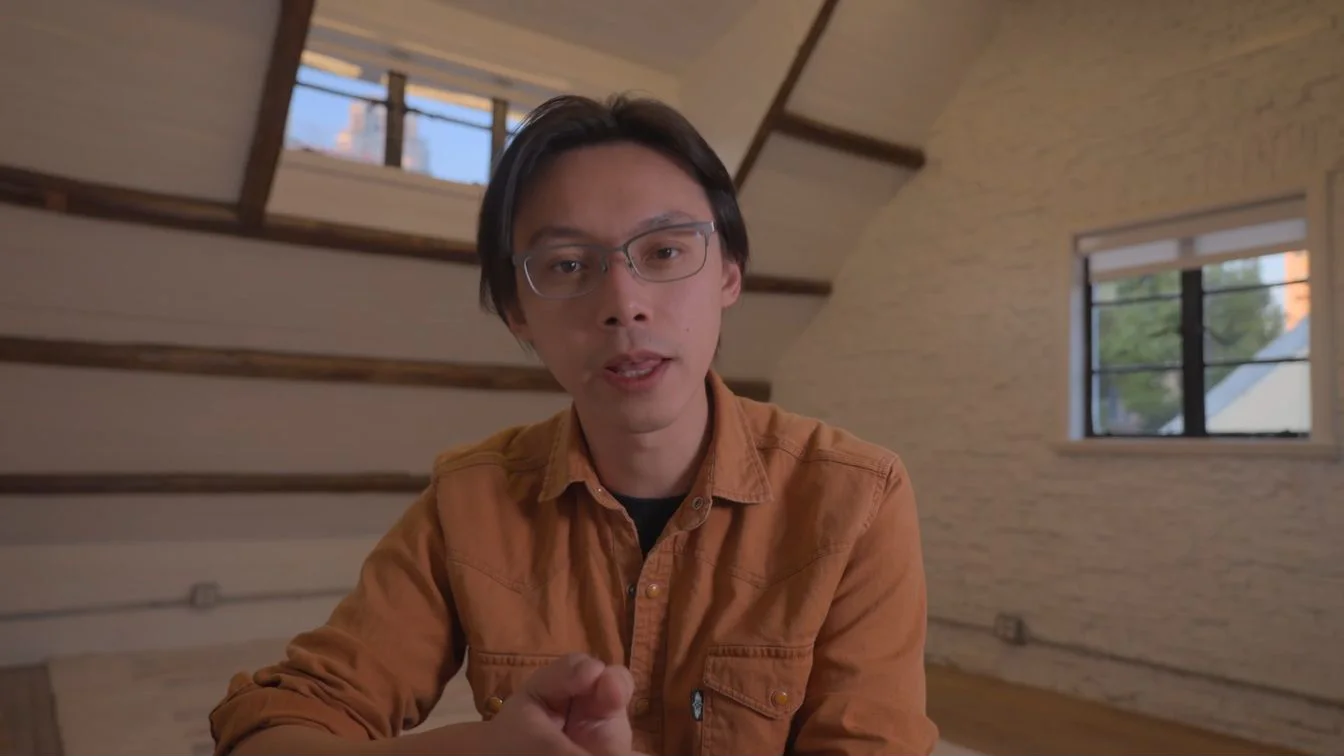
Our raw source clip (mg-teaser.mp4, 2 minutes 48 seconds / 168.2s, 30 fps) shows a presenter in an orange shirt speaking in a sunlit attic with false starts, filler words, and repeated takes. Point OpenClaw at the clip and ask ChatCut to import and transcribe it:
You: Import this clip into ChatCut and transcribe it.
OpenClaw: Imported mg-teaser.mp4 (2m 48s, 30 fps) into a new ChatCut Desktop timeline and finished speech transcription. Ready for your rough-cut instructions.
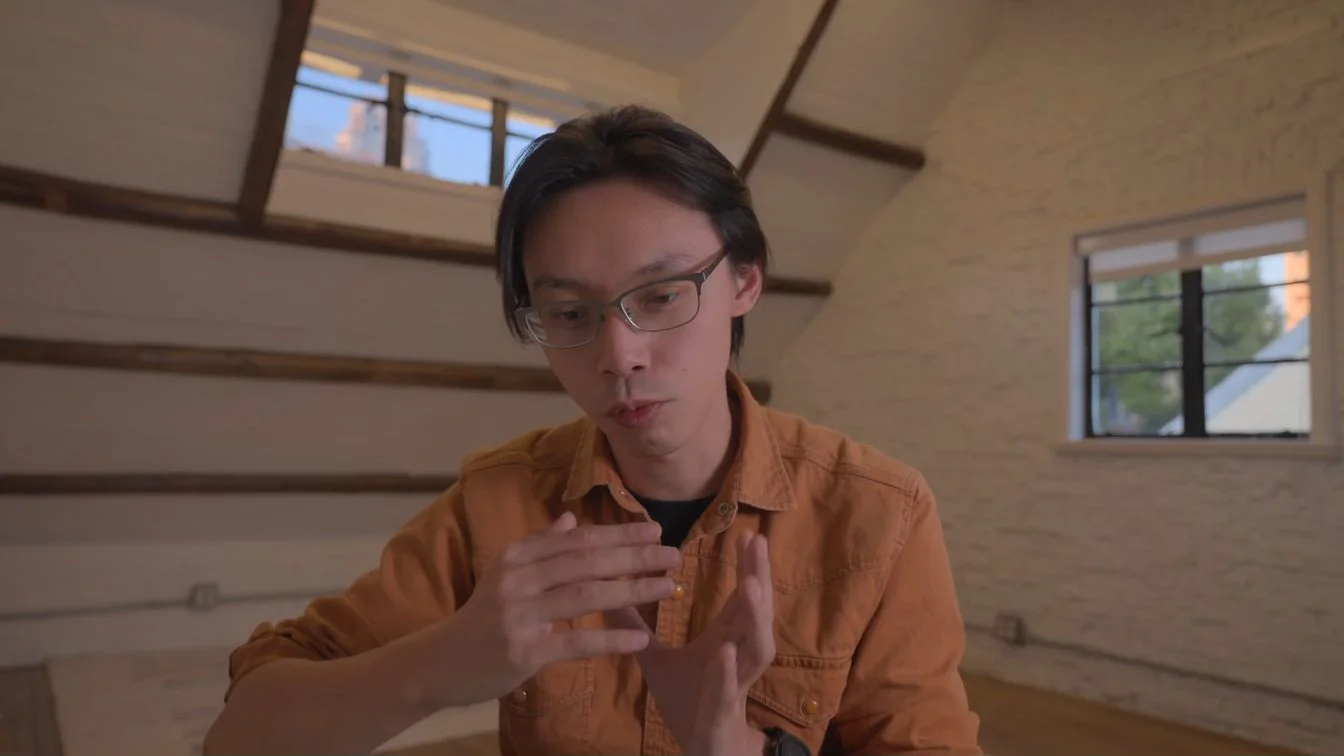
In the master project, 38 seconds and 0 ChatCut credits covered the import and transcription: ChatCut imported the 5,045-frame clip onto a 30 fps timeline and generated a word-timed transcript ready for text-based editing.
Step 3. Trim the 2:48 raw take into a clean 60-second rough cut
Next, ask for a tight 60-second 16:9 cut that removes verbal clutter and dead air without gutting the core argument:
You: Make a clean 60-second 16:9 cut: remove filler words, false starts, repeated lines and long pauses. Keep the main argument.
OpenClaw: Built an exact 60.0-second 16:9 cut (1,800 frames at 30 fps) across 8 clean segments. I stripped 7 filler words (uh, um, ah), cut repeated takes, and tightened three long pauses while keeping your intro, all three release points, and the outro.
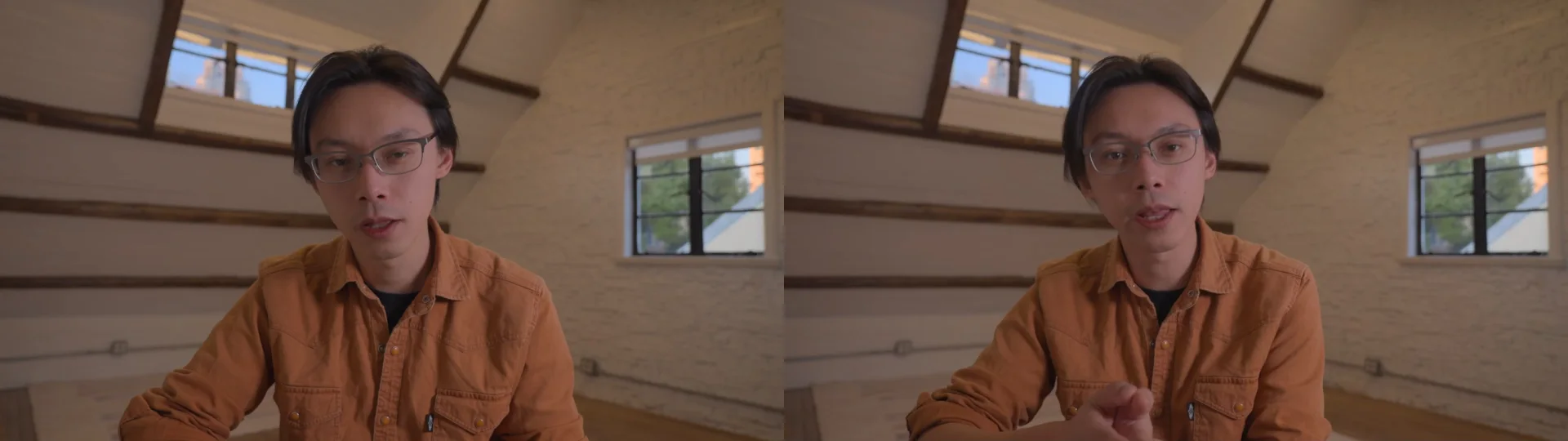
Rather than blindly slicing audio on silence thresholds alone, the master-project edit ran in two passes (1 minute 33 seconds, 0 credits): first stripping 7 filler tokens (4× "uh,", 2× "um,", 1× "ah,"), then semantically selecting the strongest takes for the intro, three product improvements (stability and performance, redesigned UI, AI Motion Graphics), and closing while compressing three awkward pauses (1.60s → 0.35s, 2.16s → 0.40s, and 4.40s → 0.97s) to hit 60.000 seconds (1,800 frames).
Step 4. Add word-by-word captions with orange spoken-word highlighting
Once the spoken timing is locked, add AI captions in the lower third so mobile viewers can follow with sound off:
You: Add word-by-word captions: bold white text, the spoken word highlighted in orange, placed in the lower third.
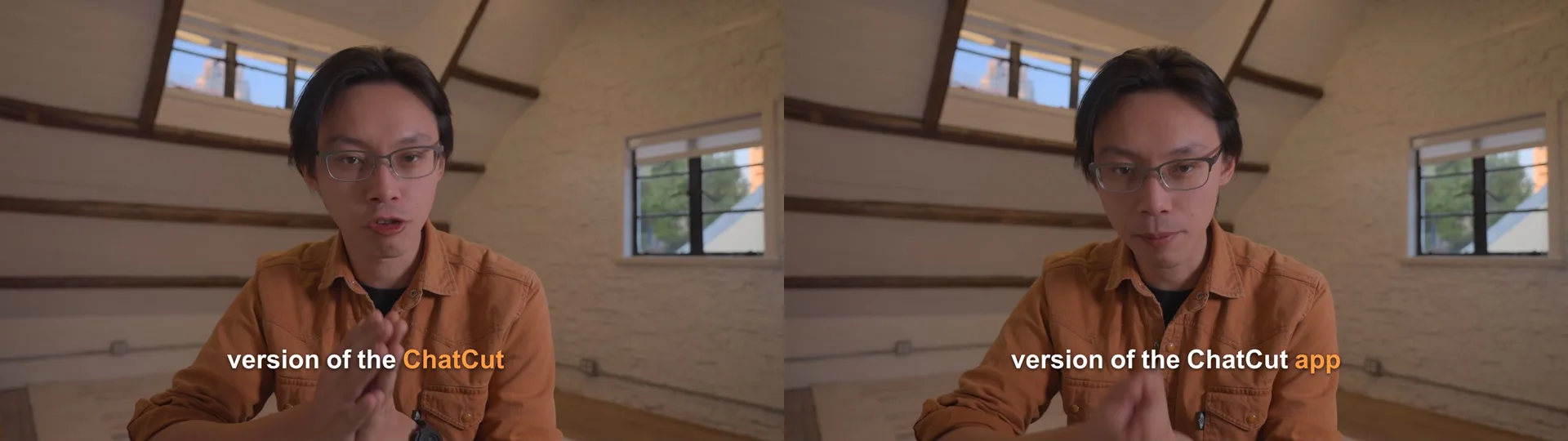
OpenClaw: Added bold white Arial 800 captions in the lower third where only the active spoken word highlights in orange (#FF9B40), and fixed two transcript misspellings from 'Checkout' to 'ChatCut'.
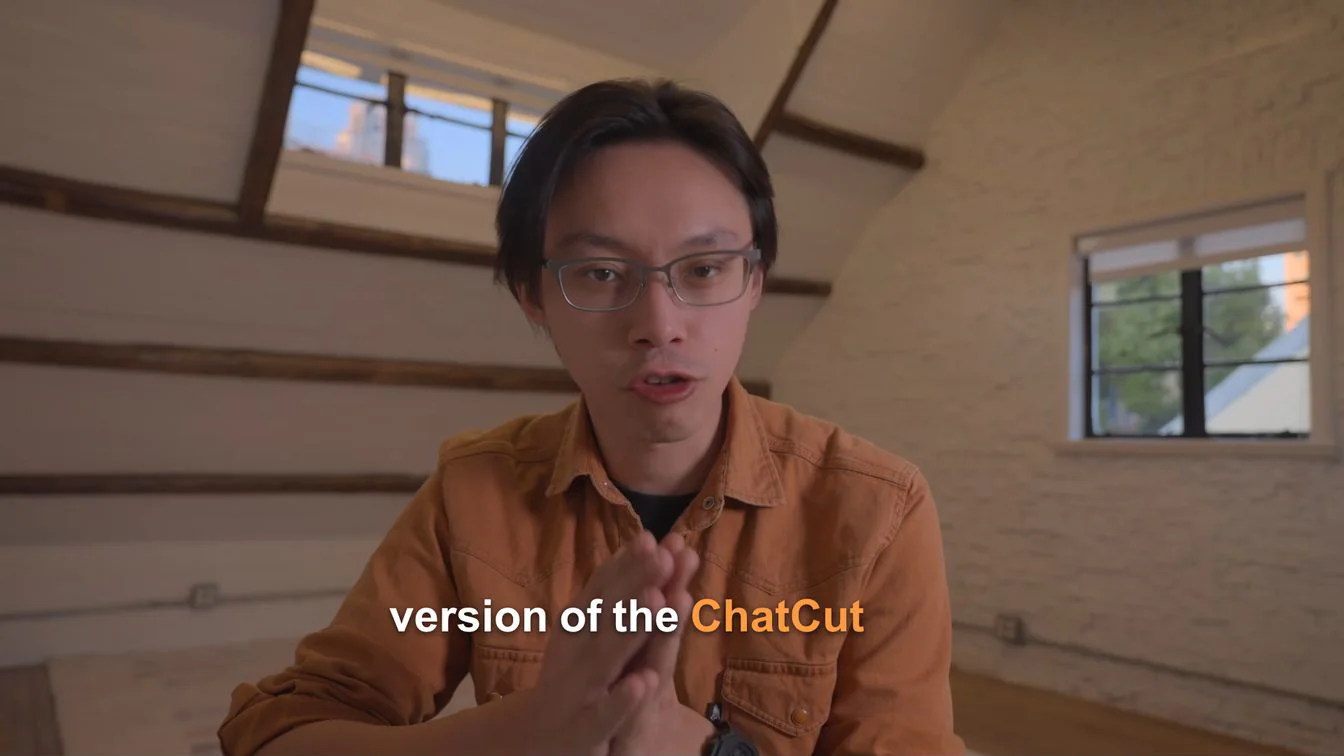
In the master project, 1 minute 06 seconds (0 ChatCut credits) covered this pass: the agent applied an editable HTML caption template (Arial 800, 64px bold white type) anchored to each word’s exact start and end timestamps, plus fixed two places where speech recognition heard "Checkout" instead of "ChatCut"—changing displayed text without changing the recorded speech:
Step 5. Place punch-in zooms and a subtle topic-change whoosh
To break up a single-camera framing without cluttering every sentence, add restrained zooms and a built-in library transition cue:
You: Add two punch-in zooms on the key lines and a subtle whoosh where the topic changes.
OpenClaw: Placed two 1.18x spring punch-in zooms (9.3s–12.7s and 38.5s–42.4s) with your face cleanly framed, plus a subtle Airy Short Whoosh at -14 dB on the third topic transition (0 credits).
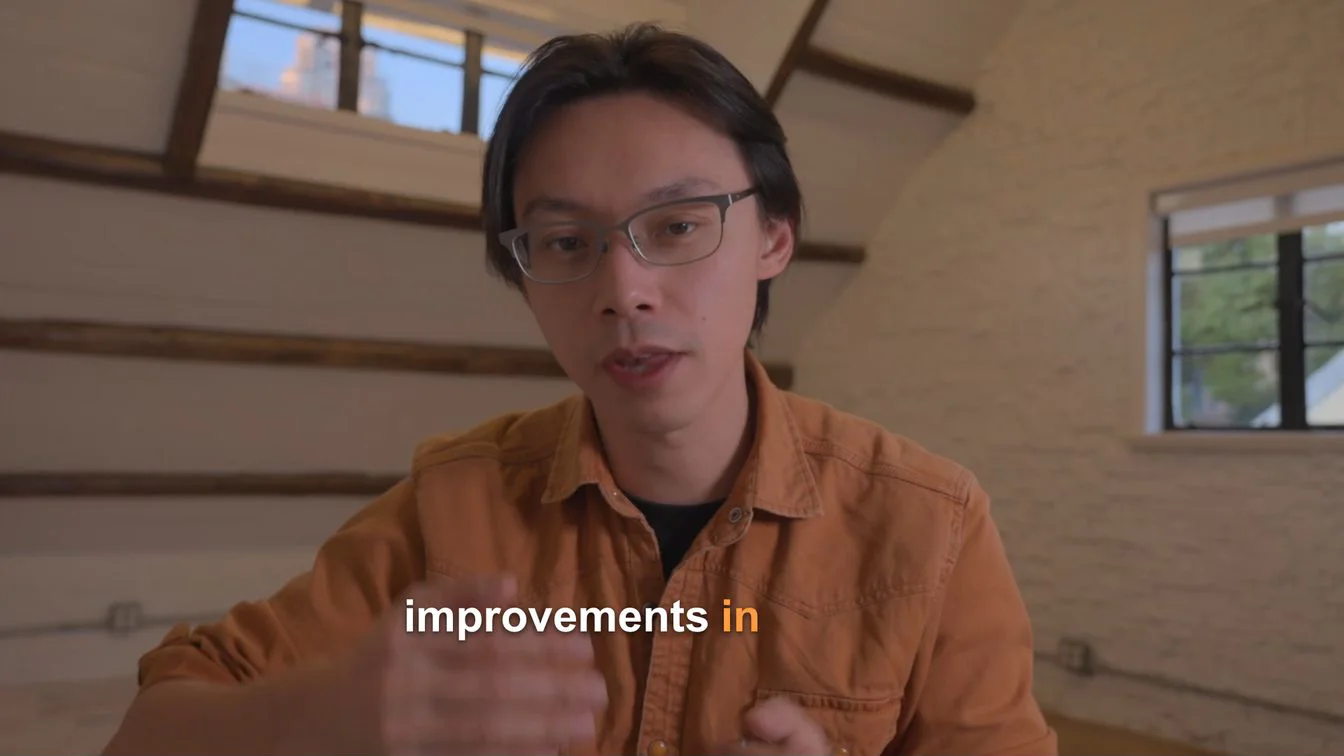
In the master project, using the native spring zoom controls and stock sound library took 25 seconds and 0 credits. That finishes the A-Roll spine.
Step 6. Author an opening title and a three-point Motion Graphics callout
Now start the B-Roll pass with AI Motion Graphics that reinforce the structure of the talk without obscuring the speaker:
You: Add a 3-second animated title at the start and a Motion Graphics callout that lists the three points I make.
OpenClaw: Authored two transparent Motion Graphics layers in a warm orange editorial palette: 'Make ideas move.' from 0:00–0:03 and a staggered three-point list from 0:07.5–0:13.5 to the right of your shoulder (0 credits).
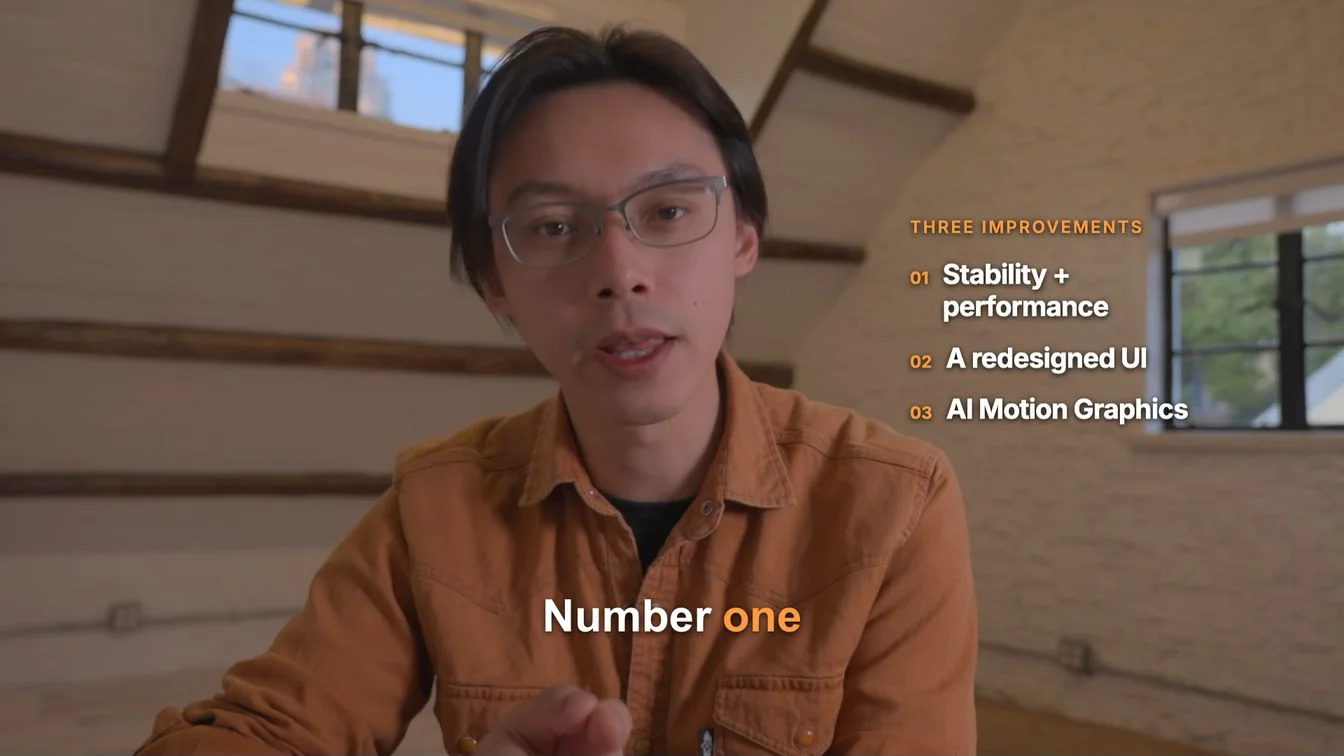
In the master project, the external agent wrote both HTML Motion Graphics layers directly onto the timeline (1 minute 51 seconds, 0 ChatCut credits); both remain live editable overlays inside ChatCut Desktop—with slide-up entrances, an expanding orange accent rule, and staggered row reveals:
Step 7. Quote and generate a 4-second AI B-Roll cutaway
When the presenter introduces AI Motion Graphics around 0:42, a visual cutaway helps break up the talking head. Always ask for the exact credit cost before generating:
You: Generate one short B-roll shot that fits what I'm describing and place it over one line. Tell me the credit cost first.
OpenClaw: Quote: 4.38 credits per 4-second 720p 16:9 Seedance 2.5 cutaway. The final shot slowly pushes toward a monitor on a wooden desk in a warmly lit attic, showing a large orange square above five colored blocks on a dark gray screen. Placed over 0:42.5–0:46.5 while keeping your voiceover and captions underneath. The final clip cost 4.38 credits; three generations to eliminate garbled screen text cost 13.14 credits in total.
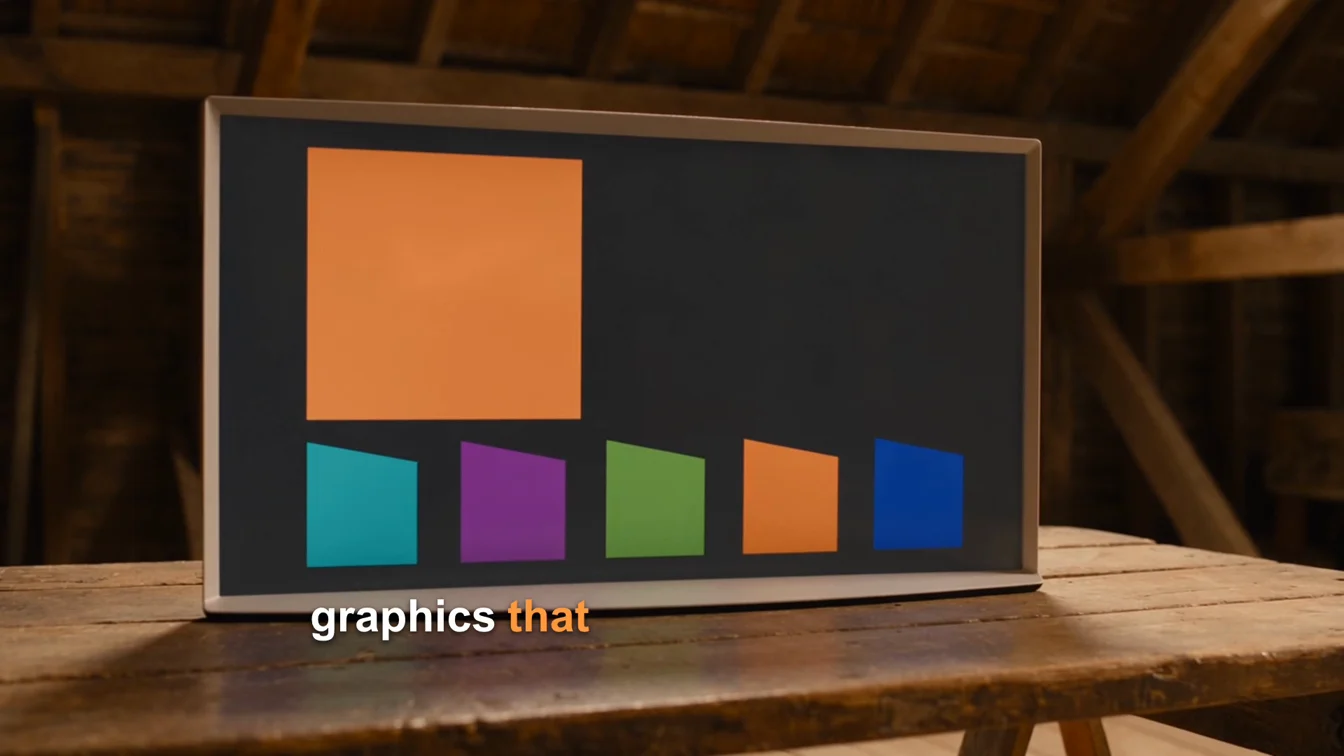
In the master project, the preflight estimator returned 4.38 credits for a 4-second, 720p, 16:9 Seedance 2.5 shot matching the warm amber attic lighting—within a 5-credit cap per generation (if a quote exceeds your budget, you can reply in chat to skip video generation and use a single generated still image with a slow zoom instead). The original M0 generation and placement over 42.5s–46.5s took 5 minutes 29 seconds. The updated shot is a slow push toward a monitor on a wooden desk in a warmly lit attic: its dark gray screen shows one large orange square above five blocks in cyan, purple, green, orange, and blue. This is an abstract illustration, not real software UI or a complete multi-track timeline. The final clip cost 4.38 credits; the original generation and two retries to eliminate garbled screen text cost 13.14 credits in total. The first retry still had garbled menu and track labels; the second used a prompt restricted to plain color blocks with no text, no letters, no logos, no UI labels and passed frame-by-frame inspection. The timing remains that of the original M0 pass and does not include retries.
Step 8. Layer ambient music with automatic speech ducking
Next, add a calm instrumental bed that stays out of the way whenever the speaker is talking:
You: Add a calm music bed and duck it under my voice.
OpenClaw: Added a 60-second CC BY 4.0 ambient bed ('Relaxing Ambient Melodies' by ViraMiller) with a 1.5s fade-in, 2.0s fade-out, and automatic voice ducking (-20.3 LUFS integrated mix, 0 credits).
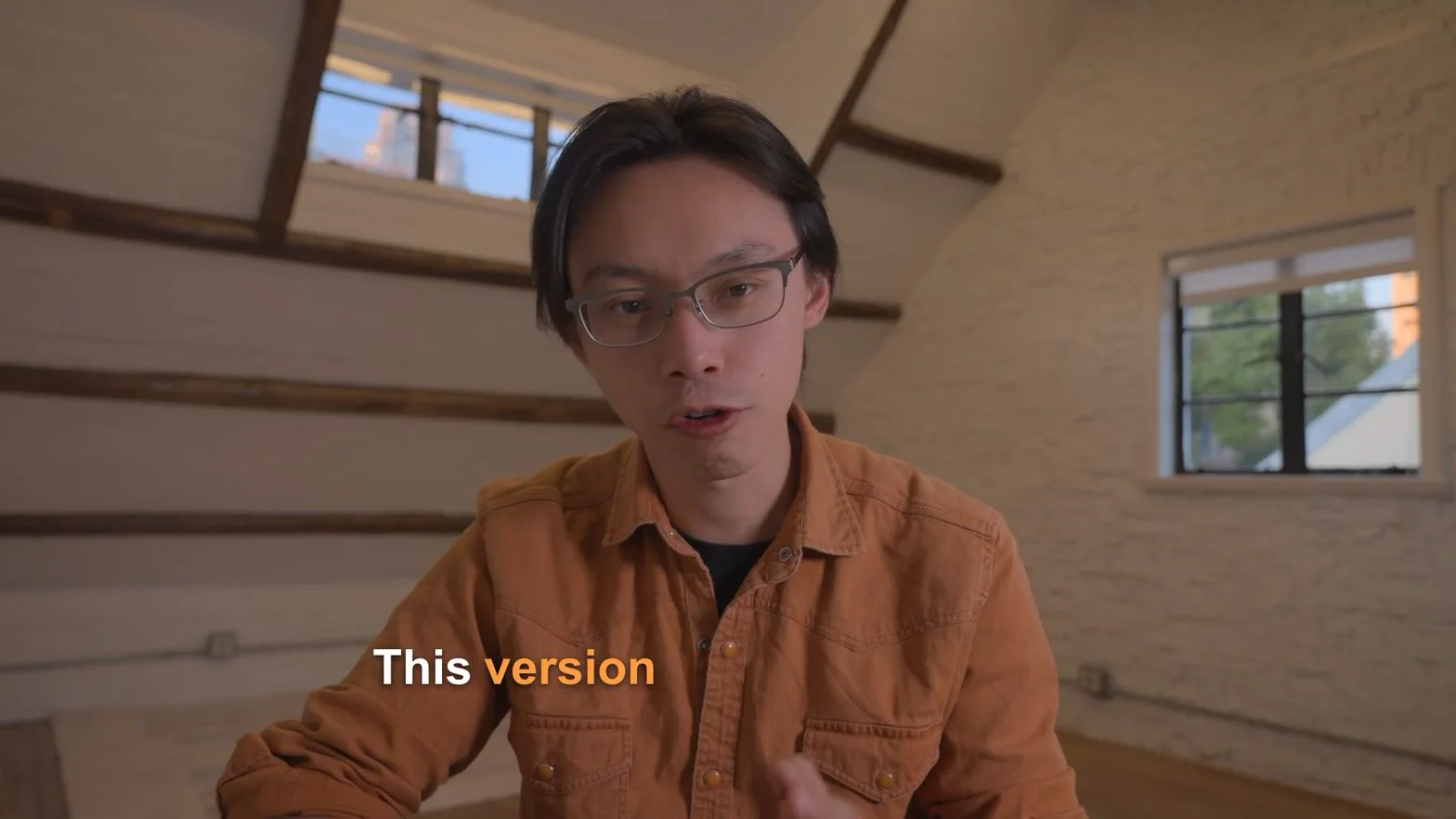
Rather than spending generation credits on music, this pass pulled a Creative Commons CC BY 4.0 track (Relaxing Ambient Melodies by ViraMiller), trimmed it to 0–60s with a 1.5s fade-in and 2.0s fade-out, and linked the spoken A-Roll as the ducking anchor and the music track as the follower while leaving the 0:36 whoosh independent (50 seconds, 0 ChatCut credits in the master project). For custom AI background music, ask for a current quote before generating.
Step 9. Export 1080p 16:9 and reframe a 9:16 Short from the same edit
Finally, render the 1080p horizontal master and duplicate the exact same 60-second cut into a vertical Short without re-editing the speech:
You: Export a 1080p 16:9 MP4.
You: Now make a 9:16 vertical version for Shorts from the same edit, keeping the speaker centered, and export it too.
OpenClaw: Exported final-16x9.mp4 (1920x1080, 60.0s) and duplicated the edit into a 9:16 timeline with centered framing, reflowed vertical Motion Graphics, and an uncropped monitor cutaway—exported as final-9x16.mp4 (1080x1920, 60.0s, 0 credits).
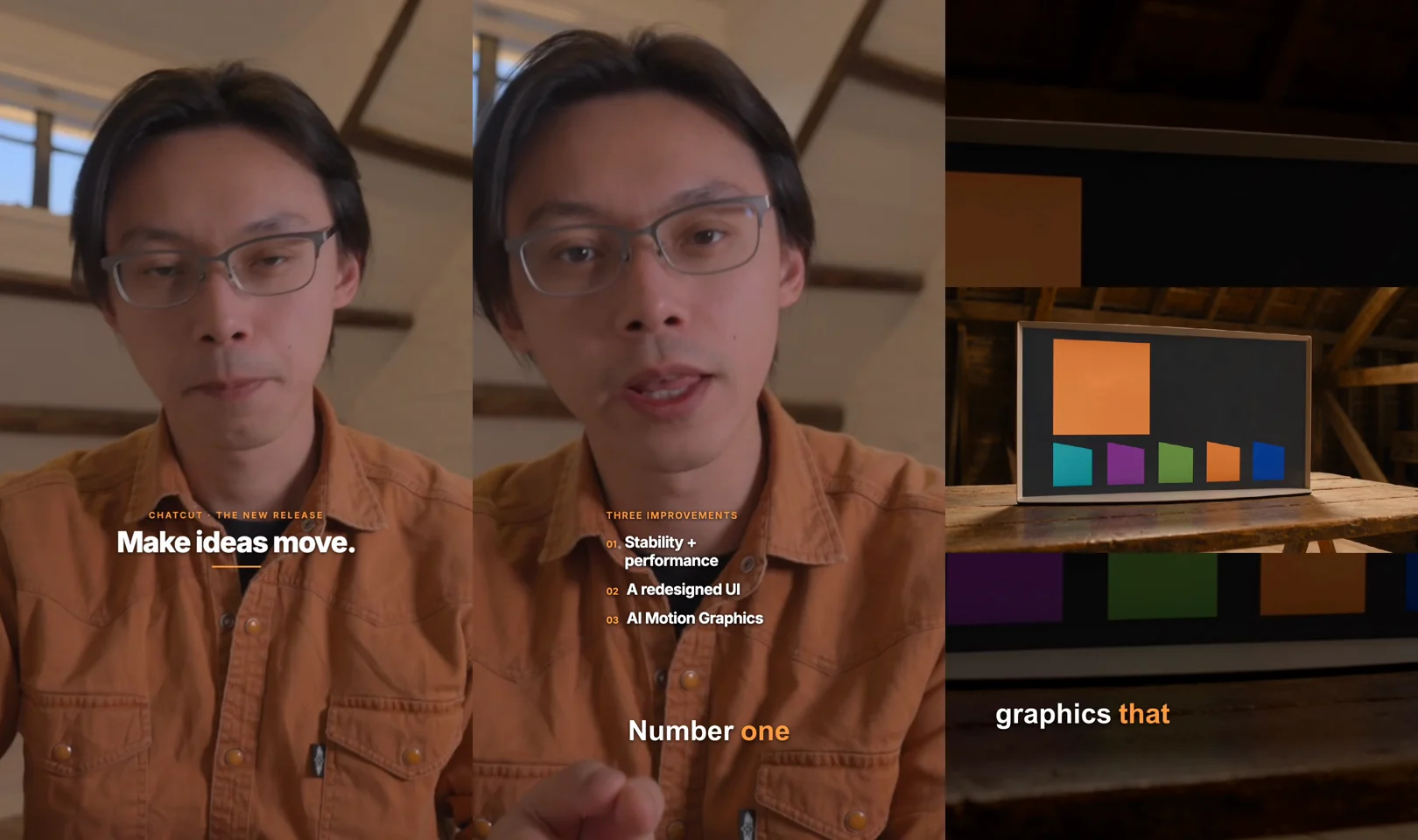
In the master project, exporting the horizontal 1920×1080 H.264 MP4 locally took about 4 seconds, and duplicating the timeline into 1080×1920, centering the presenter, resizing the opening title and three-point list for narrow phone screens, letterboxing the 16:9 studio monitor shot over a darkened (-3 EV) enlarged backdrop, and rendering final-9x16.mp4 finished in 1 minute 50 seconds total (0 credits):
The table retains the original M0 master project’s elapsed time and updates the credit figures to include the two B-roll retries. Its 13 minutes 46 seconds includes the original run’s tool waits and checks, excludes preparation, later media validation, and B-roll retries, and is not an OpenClaw speed benchmark. The row numbers refer to the eight editing passes, excluding installation.
| Pass | What happened on the ChatCut Desktop timeline | Original M0 elapsed time | ChatCut credits including B-roll retries |
|---|---|---|---|
| 01. Import & transcribe | Imported 168.2s (5,045f) local clip and completed cloud transcription | 0 min 38 sec | 0.00 |
| 02. 60s rough cut | Removed 7 fillers + retakes, tightened 3 pauses into an 8-clip 60.0s cut | 1 min 33 sec | 0.00 |
| 03. Word-level captions | Styled bold white + orange active-word lower-third captions; fixed Checkout → ChatCut | 1 min 06 sec | 0.00 |
| 04. Zooms & whoosh | Added two 1.18× spring punch-in zooms + -14 dB library whoosh | 0 min 25 sec | 0.00 |
| 05. Motion Graphics | Authored 0–3s opening title + 7.5–13.5s three-point HTML callout | 1 min 51 sec | 0.00 |
| 06. AI B-Roll cutaway | 4s 720p Seedance 2.5 attic monitor shot with abstract color blocks (42.5–46.5s); three generations to eliminate garbled screen text | 5 min 29 sec | 4.38 for the final clip; 13.14 across three generations |
| 07. Music & ducking | Added 60s CC BY 4.0 ambient track with fades + voice-anchored auto-ducking (full mix: -20.3 LUFS) | 0 min 50 sec | 0.00 |
| 08. 16:9 + 9:16 exports | Exported 1920×1080 MP4, reframed vertical timeline, exported 1080×1920 MP4 | 1 min 50 sec | 0.00 |
| Total (8 passes) | Two finished 60.0s 1080p MP4s + editable horizontal and vertical timelines | 13 min 46 sec | 13.14 (three B-roll generations; all other steps: 0) |
Which MCP tools the master-run agent used: The chatcut_desktop connection handled import (push_asset), transcript editing (read_script, apply_script), generation pricing and submission (estimate_generation, submit_video), and rendering (export). These are examples from the master project’s records, not a tool-call count for OpenClaw.
For finishing in Adobe Premiere Pro or DaVinci Resolve, ChatCut offers FCP7 XMEML timeline export; use that guide to check what transfers. Desktop also supports editable CapCut or Jianying drafts. See our comparison of video editing MCP servers for other protocol-based workflows.
Which OpenClaw skills and use cases work best for video creators?
People searching for OpenClaw skills and OpenClaw use cases already have several media options inside the OpenClaw ecosystem. Knowing how OpenClaw’s built-in media tools, ClawHub community skills, and ChatCut Desktop MCP fit together keeps you from picking the wrong tool for the job:
| Option in OpenClaw | How it works | Best for | Where it falls short |
|---|---|---|---|
| Built-in OpenClaw media tools (Media overview, Video generation, TTS) | Generate media or spoken replies through configured providers; capabilities depend on the provider | Creating source clips, images, music, or voice replies to use in a project | Review each generated asset before importing it into an edit |
| ClawHub skills (ClawHub docs) | Community instruction bundles found with openclaw skills search and installed with openclaw skills install | Finding a workflow for a specific research or media task | Inspect the selected skill’s own instructions and dependencies; a registry listing does not establish what every skill can do |
| OpenClaw + ChatCut Desktop MCP (local editing tools + bundled ChatCut skills) | A local MCP connection to a native macOS/Windows multi-track editor | Speech-led rough cuts, word-highlighted captions, editable HTML Motion Graphics, ducked audio, vertical reframing, and manual timeline polish | Requires a verified connection to ChatCut Desktop on macOS 13+ or Windows 10+ x64 |
These documented capabilities suggest four practical OpenClaw use cases for video production. These are proposed workflows, not additional runs performed for this article:
- Remote rough cuts from Telegram or WhatsApp while away from your desk. Drop raw camera cards into a folder on your home Mac Studio or Windows desktop before heading out. From Telegram on your phone, ask OpenClaw to import the take into ChatCut Desktop, strip fillers and retakes, and send back preview frames or a compressed review MP4—so the heavy rough cut is waiting on the timeline when you sit down.
- Team review loops inside Feishu/Lark or Discord channels. With
@openclaw/feishu(which connects over WebSocket without exposing a public port, supports group@mentiongating, and accepts/followup <message>while an edit is running; see Feishu docs) or@openclaw/discord, teammates can request a draft frame in an allowed shared room and ask for targeted caption or title revisions on the selected project. - Research-to-edit pipelines with ClawHub skills. Install a YouTube transcript or web-research skill from ClawHub (
openclaw skills search "youtube") to summarize competitor hooks and draft talking points, record your take, and then hand the raw file to ChatCut’s editing tools in the very next turn. - Mixing OpenClaw provider keys with ChatCut’s timeline. If you have configured a supported generation provider in OpenClaw (Video generation docs), OpenClaw can generate bespoke assets into your local workspace first and then import them onto your ChatCut Desktop timeline without a ChatCut import charge. Generation still follows the selected provider’s billing.
Which prompts can you copy into OpenClaw for common video edits?
Paste any of these briefs into Telegram, WhatsApp, Discord, Feishu, or OpenClaw WebChat once the local ChatCut connection has been verified. For more stage-by-stage templates, see our video editing prompts library.
Remote talking-head rough cut from a phone chat
Repurposing a long recording into three 9:16 Shorts
For deeper multi-clip workflows, pair this brief with our guide on turning long videos into Shorts:
Product demo or tutorial walkthrough with Motion Graphics
What do you still need to check yourself before publishing?
Inspecting the exported frames and audio measurements from our 8-step attic run highlighted five details you should always verify in ChatCut Desktop before publishing:
- Brand names and homophones in captions. Automatic transcription misheard
"ChatCut"twice as"Checkout"on our raw take. Always skim proper nouns, product names, and version numbers—and fix text typos in the Captions layer rather than deleting words in the Transcript panel (deleting transcript text cuts video frames). - Inspect AI-generated screens and signs frame by frame. Generation models commonly produce garbled text. The final 4-second Seedance 2.5 cutaway passed frame-by-frame inspection after the screen was restricted to abstract color blocks with
no text, no letters, no logos, no UI labels. Budget for retries: the final clip cost 4.38 credits, while three generations of this shot cost 13.14 credits in total. Use AI cutaways for atmosphere or conceptual beats; record real screen captures whenever viewers need to read actual software UI. - Vertical 9:16 overlay sizing and crop framing. A vertical frame has different space for titles, graphics, and wide cutaways. Check that titles, numbered lists, and wide cutaways are resized or letterboxed cleanly for vertical screens, as we did in Step 9.
- Jump-cut breaths and real headphone balance. The master project’s full mix measured -20.3 LUFS integrated loudness and -2.0 dBFS sample peak. Human headphone review was not completed; these measurements cannot establish speech intelligibility or comfortable music balance. Play the exported MP4 from 0:00 to 1:00 on headphones to make sure tightened pauses (0.35s–0.40s) don’t clip an inhale or feel rushed.
- Music attribution and synthetic media rules. Keep required licenses with your upload (such as CC BY 4.0 attribution for Freesound tracks) and check platform synthetic-content checkboxes—such as YouTube’s altered or synthetic content disclosure rules—when including realistic AI-generated scenes.
How do you troubleshoot OpenClaw and ChatCut Desktop issues?
ChatCut editing tools do not show up in OpenClaw
First confirm that ChatCut Desktop is installed and signed in on the same computer as the Gateway; open it once if setup is incomplete. Then run openclaw mcp doctor <server-name> --probe in a terminal (MCP troubleshooting) to verify the saved stdio command answers and advertises tools, and check toolFilter or + → Plugins → Tool access in the Control UI to make sure tools aren’t denied for that session. Note that openclaw mcp reload only refreshes runtimes owned by that CLI process—if your Gateway runs as a background service, apply the configuration to the Gateway or restart that Gateway, then start a fresh conversation.
Can I install ChatCut Desktop on a Linux VPS running OpenClaw?
No. While OpenClaw itself runs on Linux, Docker, and cloud VMs, ChatCut Desktop requires macOS 13+ or Windows 10+ (x64) (ChatCut Product Facts). If you want to trigger local timeline edits from Telegram, Discord, WhatsApp, or Feishu, run the OpenClaw Gateway (openclaw gateway install && openclaw gateway start) on your Mac or Windows machine alongside ChatCut Desktop.
Slash commands or group messages do not trigger in Feishu or Discord
Channel behavior follows each platform’s transport rules (Chat channels):
- In Feishu / Lark, native slash-command menus are not supported, so send
/status,/model,/reset, or/followup <message>as plain text messages (Feishu docs). - In group chats (Feishu, Discord, Slack, Telegram), delivery depends on each channel’s group access and mention settings (
openclaw channels status --probechecks channel health). Test your editing prompts in a paired DM first, or@mentionthe bot in an allowed group.
An AI video generation takes several minutes—should I resend the prompt?
Do not resend a generation prompt while a job is rendering. Generation can take several minutes; the master project’s B-roll pass took 5 minutes 29 seconds including waiting and placement. A new submission may create another billable job. Ask OpenClaw to check the status of the existing job instead: “Check the in-progress B-roll generation job without submitting a new one, and place it once ready.”
Frequently asked questions about editing video with OpenClaw
Can OpenClaw edit local videos on my computer from Telegram, WhatsApp, Discord, or Feishu?
How do I connect ChatCut to OpenClaw?
What is the difference between OpenClaw skills, plugins, and MCP for video editing?
Does editing video with OpenClaw and ChatCut cost credits?
Why connect ChatCut instead of just using an OpenClaw FFmpeg skill?
Does ChatCut Desktop work if my OpenClaw Gateway runs on Linux?
How should I choose an OpenClaw model for video editing?
Using a different agent? The same ChatCut edit works from ChatGPT, Codex, Claude Code, Cursor, Antigravity, Grok Bot, Hermes Agent, Meta Muse and WorkBuddy; each guide covers that agent’s install and quirks.